
In Nexus, time lives on the task it was spent on. Each entry says who worked, on which day, for how long, and whether the hours can be billed. The Time page adds those entries up by week: your own hours, your team's, and the hours spent on work you own.
There's no timesheet to submit and nothing to approve. An entry counts the moment it's saved. If an hour looks wrong, talk to the person who logged it. No forms in triplicate. We checked.
Open the page from Time in the left menu. Everyone can log time and see their own hours. My team and My work are part of the Enterprise plan.
Three questions Time answers
The lay of the land
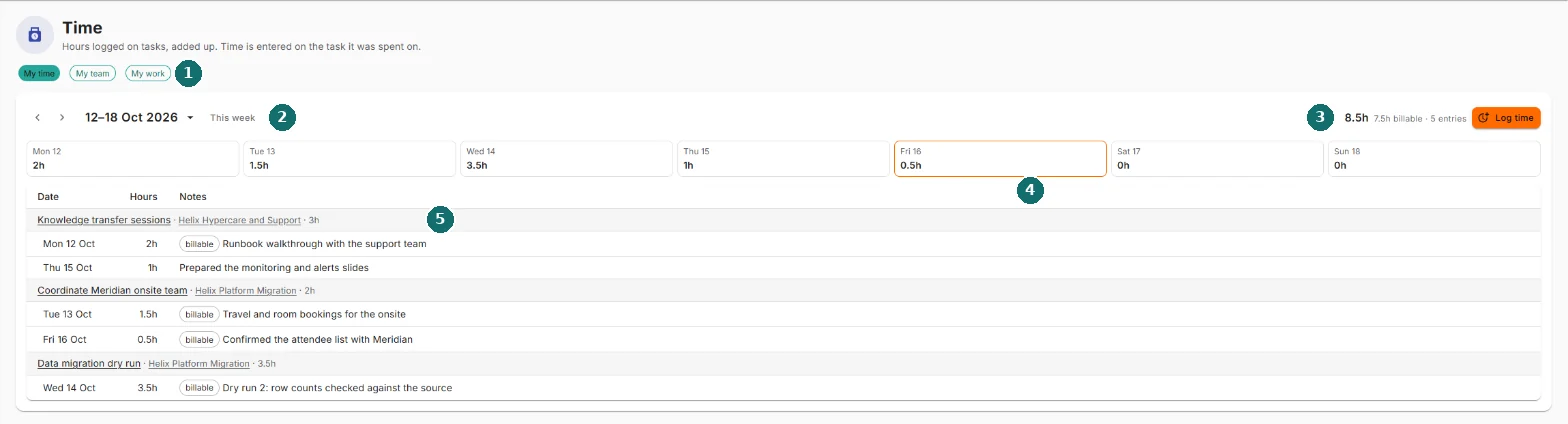
- The views. My time, My team and My work. You only see the ones that apply to you.
- The week. Arrows, the week's name, and This week.
- The total, how much of it is billable, and Log time.
- One box per day, with that day's total. Today has a colored border.
- The entries, grouped by task.
Logging time
You can log time from three places:
- The task's page: the Time log panel, under Cost and effort. Click the clock icon at its top right.
- The task's quick view: the Time logged line shows the total, with Log time beside it.
- The Time page: Log time on My time. It asks which task, from the tasks assigned to you. Type to search the list.
They all open the same form:
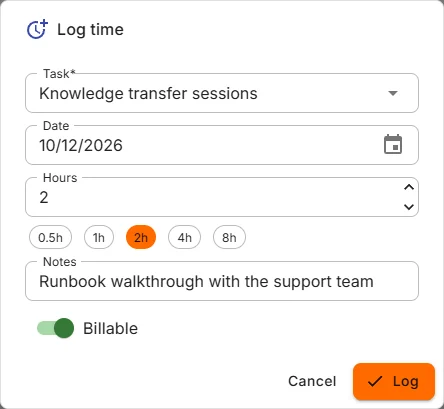
- Task. Only on the Time page. On a task, it's that task.
- Date. Starts at today, or at the date you last logged, so a run of days goes quickly.
- A date in the future is allowed, with a reminder: "That date is in the future. It is allowed, but double-check it."
- A date more than 60 days back is allowed, with a reminder: "That date is 90 days ago. It is allowed, but double-check the date."
- A date before 1 Jan 2000 is refused. If you're logging time from 1999, we have questions.
- Hours. More than 0, at most 24, in quarter hours or finer. The chips (0.5h, 1h, 2h, 4h, 8h) fill it in.
- Notes (optional). What the time was spent on, up to 2,000 characters.
- Billable. Whether the hours can be billed to a client.
- On behalf of (task page only). Log hours for someone else: a teammate, or an outside contact such as a contractor. Leave it empty to log your own. It appears if you own the work, stand in for its owner, or manage the person directly.
Click Log, or press Enter. To log your own time you need at least comment access to the task.
A task's time log
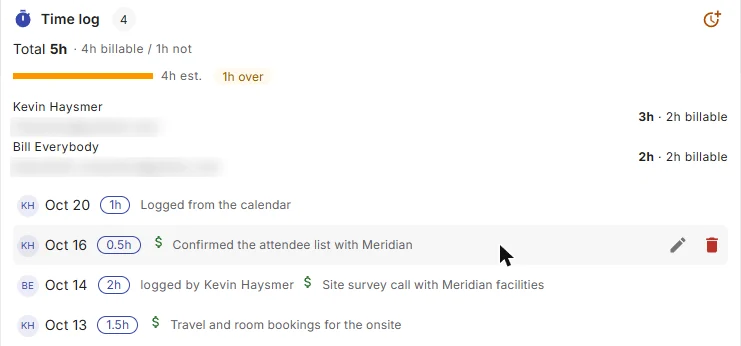
The Time log panel on a task shows:
- The total, and how much of it is billable.
- A bar against the estimate, when the task has estimated hours, with 1h over (or however much) once the total passes it.
- Time by person, when more than one person has logged time.
- The entries, newest first: the date, the hours, a $ when billable, and the note. A long note is cut short. Hover over it, or Tab onto it, to read it all. The first 20 show, and Show all lists the rest.
- logged by and a name, on an entry someone entered for another person.
Hours by person show to that person, their direct manager and the owner of the work. Everyone who can see the task sees the total. If some names are held back from you, the panel says so.
Changing an entry
Hover over an entry you logged, or one you entered for someone else, and edit and delete appear.
- Edit opens the same form. If someone changed the entry after you opened it, your save is refused and nothing is overwritten: "This entry changed somewhere else while you were editing, so your changes were not saved." Reload the entry shows the current values.
- Delete removes it at once: "Entry deleted. The total dropped by 0.5h." Click Undo in that message to bring it back, note and all.
The Time page
My time
Your own hours for the week. The day boxes across the top add up each day. Below them, entries are grouped by task, with the task's project (or No project) and its hours for the week. Click a task or a project to open it.
Each line shows the date, the hours and the notes, with billable when it is, and logged by and a name when someone else entered it.
Log time for a date in a different week and the page jumps there and tells you: "Showing the week of Wed 7 Oct, where that time was logged."
My team

One person's week at a time. Pick them in Person, which lists the people who report to you in the org chart and searches as you type. This view appears only if someone reports to you.
My work

Every hour logged on something you own. Pick it in Project, program or portfolio, and each line names the person who worked it. A program includes its projects, and a portfolio includes its programs and projects. Finished ones come last, marked (finished). This view appears only if you own something, or the owner has made you their stand-in.
Who sees whose hours
Being an administrator doesn't show you anyone else's time. You see a person's hours because you manage them, and a project's hours because you own it. Rank alone gets you nothing here.
A task or project you can't open shows as plain text, marked (not shared with you). Its hours still count, because the hours happened whether or not you can see the task.
Moving between weeks
Weeks run Monday to Sunday, in your own time zone.
- The arrows go back or forward a week.
- The week's name (12-18 Oct 2026) opens a calendar. Pick any day to jump to its week.
- This week brings you back.
If your account can't log time
Every member needs a person record in the workspace to log time. Nexus makes one when you join. If yours is missing, Nexus says so: "Time can't be logged yet because your account has no person record in this workspace. It is repaired automatically within a few hours, or a workspace administrator can repair it now: Admin, Members, Repair person records."
Keyboard
- Tab reaches every button, link, list and note. Enter presses or opens it.
- In the Log time form, Enter logs the entry.
- On a note in a time log, focus shows the full text.
- In the week calendar, Esc closes it and puts you back on the week's name.
Common questions
Where do I submit my timesheet? Nowhere. Every entry counts the moment it's saved. Enjoy the free Friday afternoon.
Why can't I edit an entry on a task? You can change entries you logged, and entries you logged for someone else. Anything else belongs to the person who logged it.
Why is My team (or My work) missing? My team needs someone reporting to you in the org chart. My work needs a project, program or portfolio you own. Both need the Enterprise plan.
Why don't I see a task in the Log time list? The list on the Time page holds the open tasks assigned to you. For anything else, open the task and log time there.
The total on a task is higher than the hours I can see. Some entries belong to people whose hours you aren't shown. The total still counts them.
What happens to hours on a deleted task? They leave every total. Restore the task and they come back.