
The calendar is where your time lives: your meetings, the tasks due each day, your private to-dos, bills and renewals coming due, and the hours you've logged. It's also where you plan. Drag a task onto a day to schedule it, or onto an hour to block time for it.
Open it from Calendar in the left menu.
Three things the calendar is for
The lay of the land
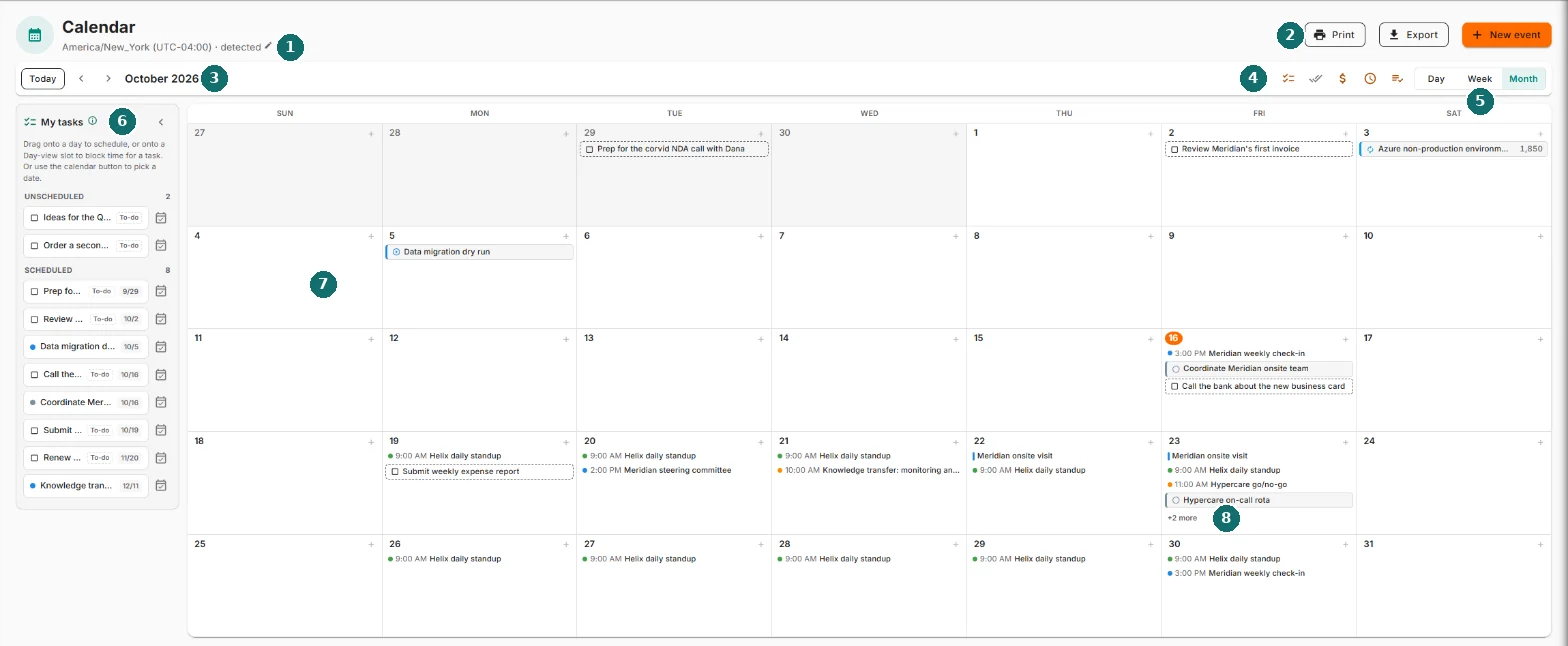
- Your time zone. Everything on the calendar is shown in it. Click it to change it.
- Print, Export and New event.
- Today, the arrows and the date range. Today brings you back. The arrows move one day, week or month at a time.
- What to show. Five small switches that turn whole layers on and off.
- Day, Week and Month. The calendar remembers the view you used last.
- My tasks. Your open tasks and to-dos, ready to drag onto the calendar.
- The calendar itself.
- +2 more. When a day in Month view holds more than fits, this lists the rest without leaving the month.
Your time zone
The line under the title reads something like America/New_York (UTC-04:00) · detected. "Detected" means Nexus is using your browser's time zone because you haven't picked one.
Click the line to open Calendar time zone. Pick a zone and Save, and the calendar (and anything you export from it) uses that zone from then on, on any device. Use detected appears once you've saved a choice and hands control back to your browser.
What to show
The five icons left of Day, Week, Month each turn a layer on or off. Nexus remembers every choice.
| Switch | Shows | Starts |
|---|---|---|
| Show due tasks | Your open tasks, on the day they're due | On |
| Include completed tasks | Finished and cancelled tasks too, struck through (only while due tasks are on) | Off |
| Show bills and subscriptions | Bills on their due day and subscriptions on their renewal day, with the amount | On |
| Show logged time | Hours you've logged, on the day you logged them | Off |
| Show my to-dos | Your private to-dos, on their due day | On |
Hover an icon and it tells you what it does and whether it's on.
The views
Month
Each day shows its first few items. +2 more (or however many) opens the rest in a small list. Click a day's number to open that day. The + in a day's corner starts a new event on that day, set to All-day. Turn All-day off if it's a meeting.
Week
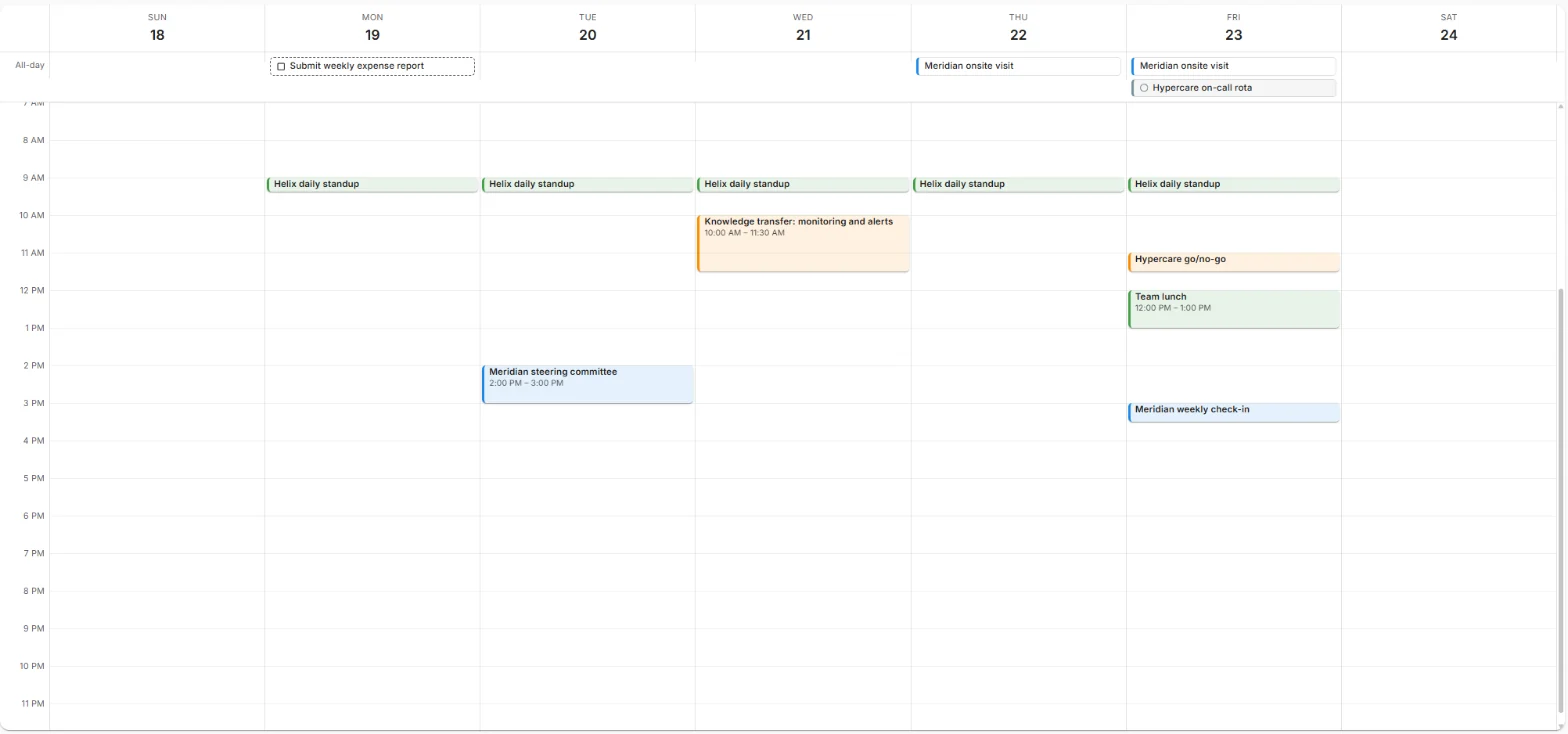
All-day things sit in a row across the top: all-day events, due tasks, to-dos, bills. Timed events sit in the grid below, at their time, in their category's color.
Day
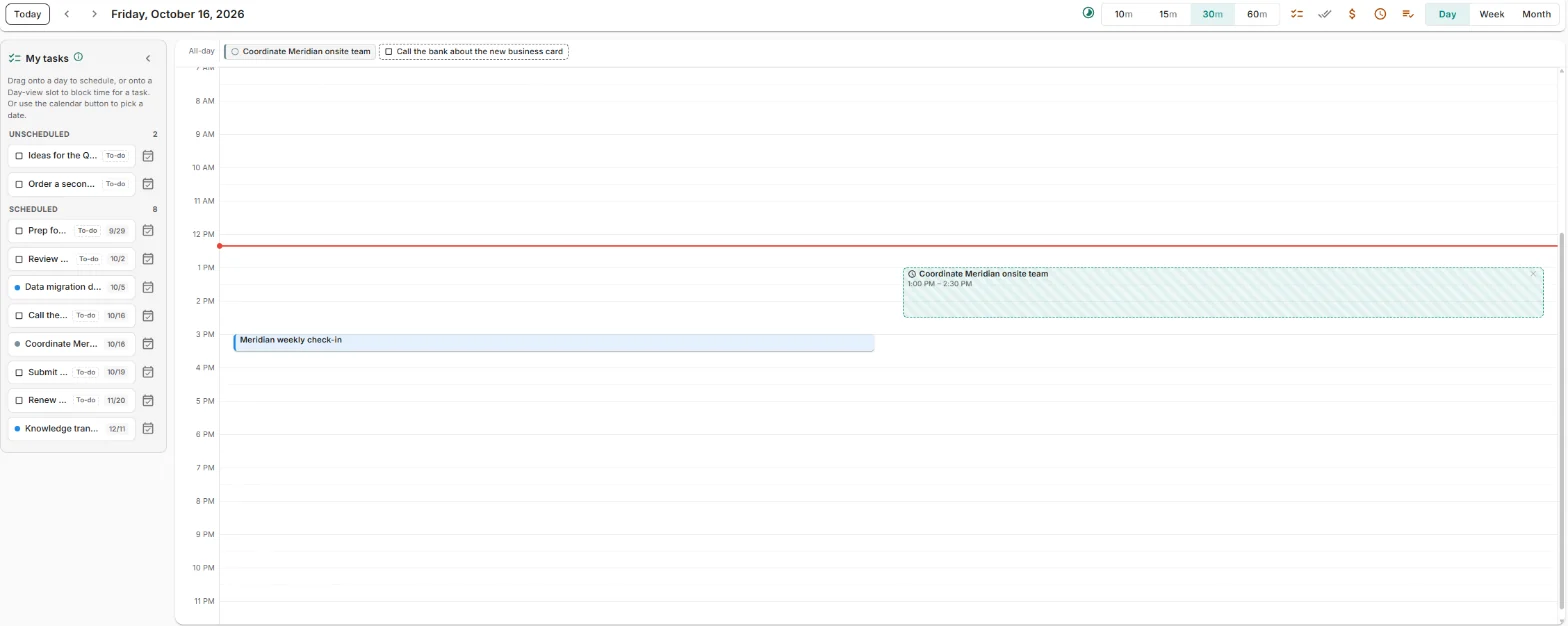
The same all-day row, then the day itself. Events are on the left half. The right half is your planner, where time blocks go (see Planning your day). The buttons 10m, 15m, 30m, 60m set how finely the planner is divided.
Reading an item
Hover any item to see its full title and time. An event that runs past midnight shows its start on the first day and until 6:00 AM on the next. A day it runs straight through says all day.
Making an event
Click New event, or the + on a day in Month view.
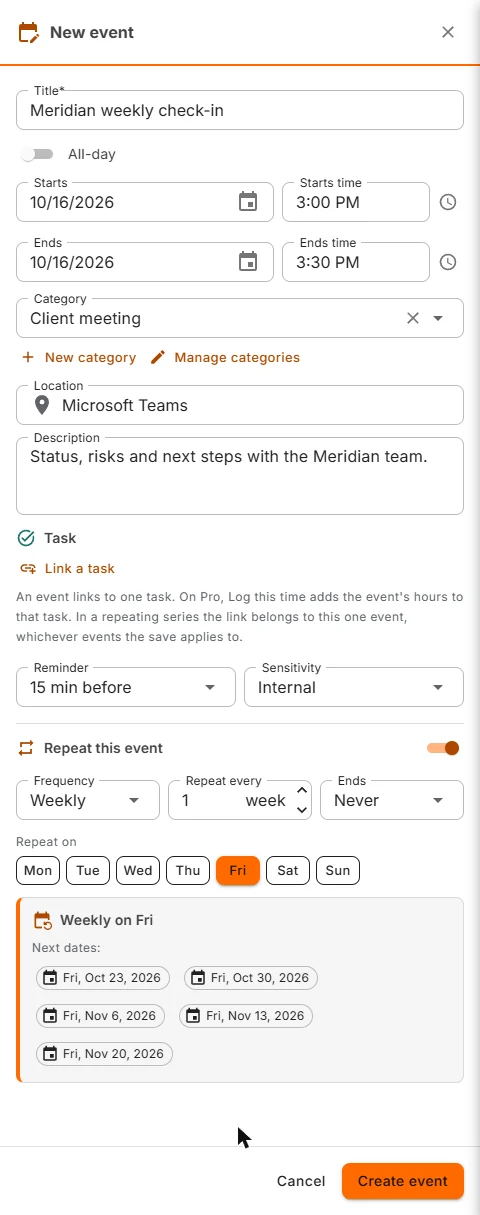
- Title. The only thing you must fill in.
- All-day, or a start and end. Type times however you like: 2:30 PM, 230p and 1430 all work. Move the start and the end moves with it, keeping the same length.
- Category. Colors the event. See Categories below.
- Location and Description.
- Task. Link a task ties the event to the work it's for. See Events and tasks.
- Reminder. From At start to 1 day before.
- Sensitivity. Public, Internal, Confidential or Restricted.
- Repeat this event. See Repeating events.
Click Create event. If the end is before the start, the editor says "Ends must be after Starts." right under the fields, before you get as far as saving.
If someone else saved a change to the same event while you were editing, Nexus keeps what you typed and offers to load their version, instead of quietly overwriting one of you.
Categories
A category is a name and a color. There are two kinds:
- Workspace categories. Everyone sees them. Only owners and administrators can create them.
- My categories. Yours alone. Anyone can create them.
New category creates one right inside the editor. Manage categories lets you rename, recolor or delete the ones you're allowed to change. Delete a category and its events stay exactly where they are. They just lose the color.
The event panel
Click an event to open its panel.
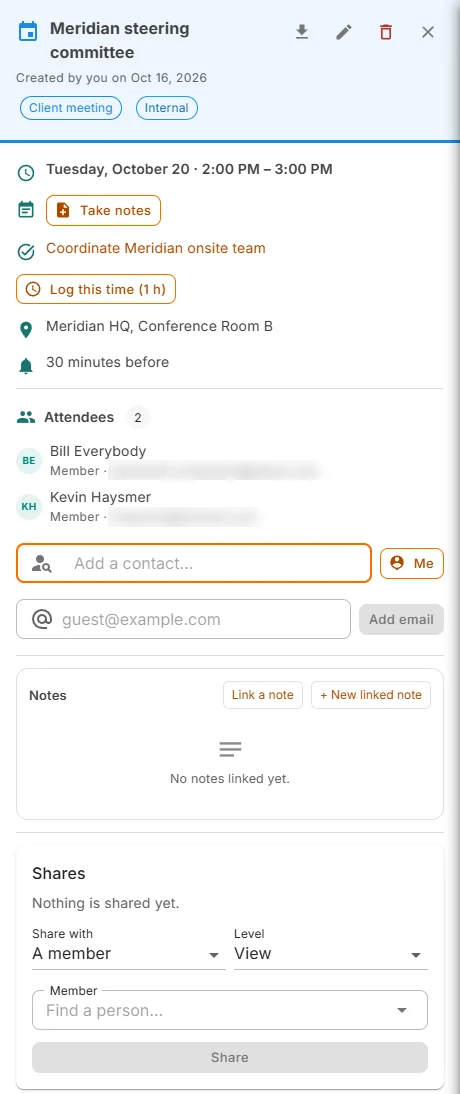
- At the top: who created it and when, and chips for its category, whether it repeats, and its sensitivity (the last chip).
- Icons: export it as a calendar file, edit it, delete it, close the panel.
- When and where, and the reminder.
- Take notes starts a meeting notes page for this event, filed in your notes and linked back here. Once there are notes, the button becomes Open meeting notes.
- The linked task, and Log this time. See Events and tasks.
- Attendees. Add people from your workspace or your contacts with Add a contact..., or yourself with Me. Each shows their email, so two people with the same name stay two people. Anyone outside Nexus can go in by email address. They're recorded, not notified.
- Notes linked to the event, and Shares, for giving someone view, comment, edit or admin access.
Adding a workspace member as an attendee puts the event on their calendar, view-only.
If you can view an event but not change it, the panel says so, and who to ask: "You can view this event. Ask Kevin Haysmer to change it." No guessing whose meeting it is.
Esc closes the panel and puts you back where you were.
Repeating events
Turn on Repeat this event, then choose:
- Frequency: Daily, Weekly, Monthly or Yearly.
- Repeat every: 1 week, 2 weeks and so on.
- Repeat on: which days, for a weekly event.
- Ends: Never, After a number of times, or On a date.
The box underneath spells it out (Weekly on Mon, Tue, Wed, Thu, Fri, 10 times) and lists the next few dates, so you can check before you commit.
A repeating event keeps to the time zone of the person who created it. A 9 AM standup stays at 9 AM when the clocks change.
Changing one, some or all
Save a change to an event in a series and Nexus asks how far it goes:
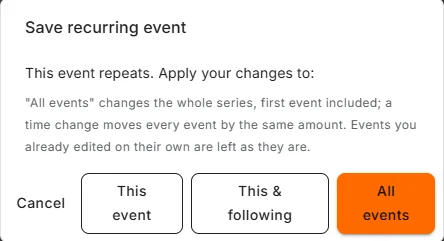
- This event: only this one.
- This & following: this one and every one after it.
- All events: the whole series. A time change moves every event by the same amount.
An event you change on its own gets an Edited on its own chip, and later All events changes leave it alone. It's had its moment. Let it be.
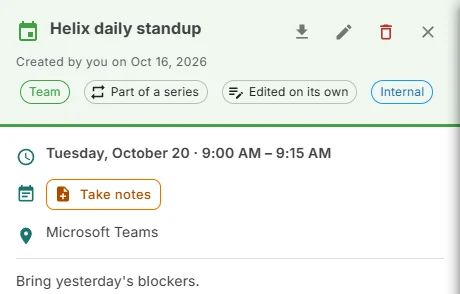
The repeat pattern itself (daily, weekly, which days) is changed from the series' first event.
Deleting an event
The red bin asks first. For a repeating event it tells you exactly what each choice removes:
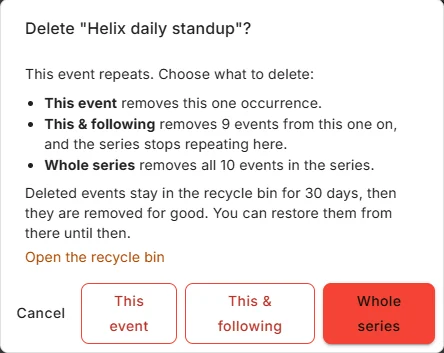
Deleted events go to your recycle bin. The dialog says how long they stay there (30 days, unless your workspace has changed it) and links to it. The message after a delete also has Undo for ten seconds, which brings back exactly what went.
Events and tasks
An event can be linked to one task: the working session, the review, the call where the thing gets decided.
- Link it from the event (Task → Link a task, search, pick), or from the task's own page under Calendar events.
- The event panel names the task and opens it. The task lists its events.
- In a repeating series, the link belongs to the one event you linked.
- Log this time (Pro) adds the event's length to the task's logged time, on the day of the event, and so to the Time page. Press it again after changing the event and it updates the same entry rather than adding a second one. All-day events have no length to log.
Tasks and to-dos on the calendar
Due tasks sit on their due day. Click one for its quick view, where you can change it without leaving the calendar. Drag one to another day and its due date moves with it.
Your to-dos show as dashed chips, and they're private: To-do: Call the bank about the new business card, due Oct 16. Private to you. Opens My To-Do. Click one to go to My To-Do. Drag one to another day to change its due date. Nobody else sees them, they're left off when you print, and they never go in an export.
Bills and subscriptions show their amount. Click one to open the record in Resources. They can't be dragged. The bill's due date isn't the calendar's to change. (If only.)
Logged time shows the hours and the task. Click it for the task's quick view.
My tasks
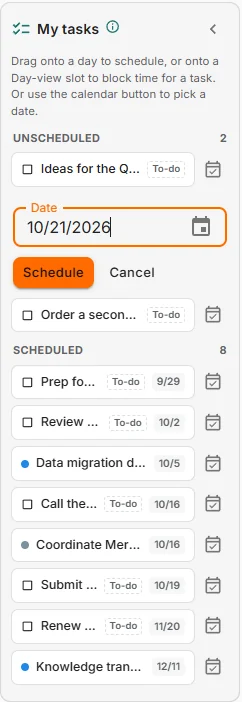
The panel on the left holds the open tasks assigned to you and your to-dos, split into Unscheduled (no date yet) and Scheduled (with the date). To-dos carry a To-do tag.
- Drag an item onto a day to give it that date. For a to-do, only the date changes.
- No mouse? Click the calendar button beside an item, type or pick a date, and click Schedule.
- Every schedule offers Undo.
- Click an item to open it.
- The i beside My tasks says what the panel holds. The arrow folds it into a narrow strip for more room, and the strip's arrow brings it back. If you have nothing to schedule, it starts folded.
Planning your day
In Day view, drag a task from My tasks onto a time in the planner (the right half). That's a time block: the task's name and its time, held for you.
- Drag the block to move it. Drag its bottom edge to make it longer or shorter.
- Click a block, or press Enter on it, to open its task.
- Remove it with its ✕, or select it and press Delete. Undo brings it back.
- To-dos can't block time. Drop one on the all-day row to give it a date instead.
A time block is a promise to yourself. Nexus can hold the time. Keeping it is on you.
Printing and exporting
- Print prints the view on screen. The My tasks panel and your to-dos stay off the page.
- Export downloads every event you can see, past and future, as one calendar file (.ics) that Outlook, Google Calendar or Apple Calendar can open. That's every event, not just this week's. The export icon on an event's panel does the same for that one event.
Keeping Outlook in step
Nexus can sync with your own Microsoft calendar, Microsoft 365 or a personal outlook.com account alike. You don't need to sign in to Nexus with Microsoft. The connection is personal: it's your calendar, and connecting it changes nothing for anyone else.
The Outlook Calendar (Microsoft) card is under Admin → Integrations. Click Connect Microsoft calendar and sign in to Microsoft. Once connected you choose:
- Events created in Outlook go to: a workspace, where they arrive visible only to you, or Don't import, which only sends your Nexus calendar out.
- Send meeting invitations from Outlook: when on, meetings synced from Nexus email their attendees through Outlook, including the attendees of future meetings that already exist. When off, events sync without attendees and nobody gets an email.
Disconnect stops the sync. Everything already in Outlook stays as it is.
When the calendar is empty, or won't load
- Nothing scheduled this week. There's nothing in range. If a layer is switched off, it names which, so you know what you're not seeing.
- The calendar didn't load. Something went wrong reading it, which isn't the same as a clear week. Click Try again.
Keyboard
- Tab reaches every button, item and chip. Enter or Space opens or presses it.
- Esc closes a panel, the event editor (when you're not typing in a field), a +N more list or the schedule box.
- In Link a task, the arrow keys move through results and Enter picks one.
- On a time block, Enter opens the task and Delete removes the block.
Common questions
Can I drag an event to a new time? No. Tasks, to-dos and time blocks drag. Events don't. Open the event and edit it.
Why can't my colleague see my meeting? Events are seen by the person who made them, their attendees, and anyone they're shared with. Add your colleague as an attendee, or share it from the panel.
Why don't I see "Log this time"? The event needs a linked task and a start and end time (not all-day). It's a Pro feature, so on other plans the button carries a Pro tag.
I deleted a whole series by mistake. Click Undo in the message straight away. Missed it? It's in your recycle bin.
Why does Month view say "+2 more" when there's room? Each day shows a fixed number of items so the rows line up. The rest are one click away.
My calendar's in the wrong time zone. Click the time zone line under the title and pick yours.