
Tasks are the work itself. A task can live in a project or stand on its own, and it can carry subtasks, people, dates, dependencies, time, costs, notes, comments, files and risks. Once it exists, it shows up everywhere work is tracked: lists, boards, calendars, timesheets and reports. If something needs doing by someone, this is where it lives.
Open Tasks in the left menu. Everything in this guide starts there.
The Tasks page
The first page is a quick read of where things stand, and a door to everything else.

The four numbers at the top are links:
| Tile | What it counts | Opens |
|---|---|---|
| Open | Every open task you can see, subtasks included | All tasks, every level |
| Due today | Open tasks due today | All tasks, due today |
| Overdue | Open tasks past their due date | All tasks, overdue |
| Mine | Open tasks assigned to you | My Tasks |
Hover the small i beside a tile to see exactly what it counts.
Quick actions go to New task, All tasks, My Tasks, RACI and the Board.
All tasks
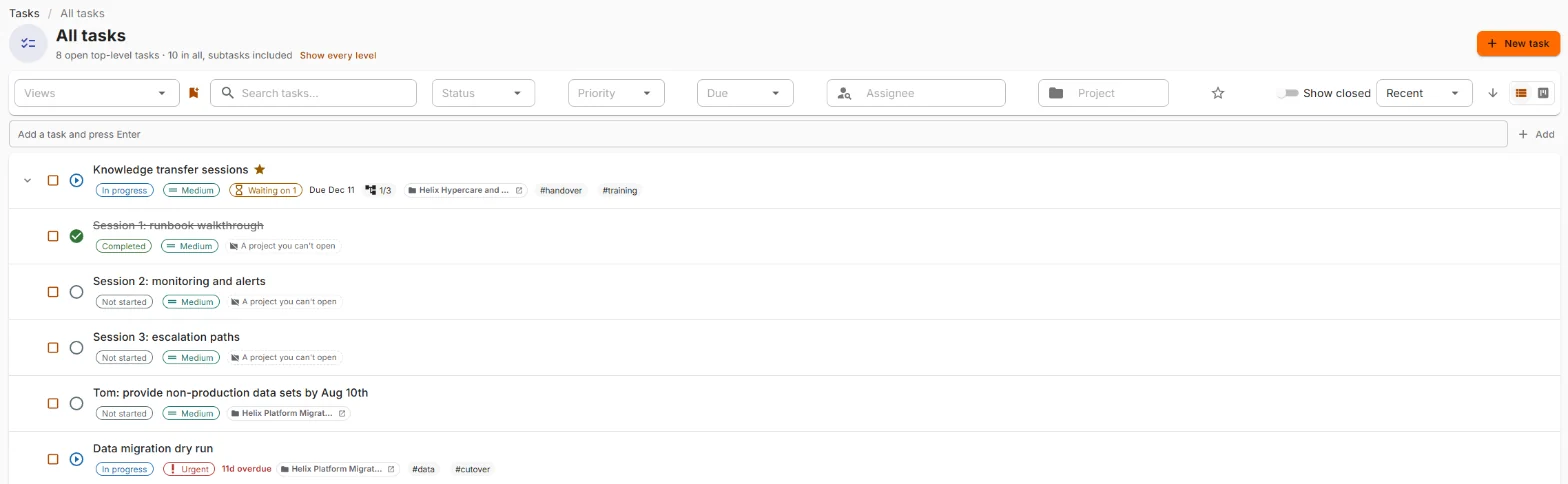
The full list of tasks you can see.
Reading the list
- The line under the title says what's being counted, like 8 open top-level tasks · 10 in all, subtasks included.
- Each row shows the status icon, the name, and chips for status, priority, due date, subtask progress (1/3), project, tags and goal. Waiting on 1 means another task has to finish first.
- A task with subtasks has an arrow on the left. Click it to see them indented underneath.
- Show every level lists every task flat, subtasks included. Show as a tree goes back.
- Click a row to open the quick view on the right. The expand icon on the row, or Open full editor in the quick view, opens the full task.
Adding a task fast
The Add a task and press Enter box under the toolbar creates a task with just a name. If you've filtered to a project, the box says so and the new task lands in that project.
Finding tasks
| Control | What it does |
|---|---|
| Search tasks... | Matches the name |
| Status | One or more statuses |
| Priority | One or more priorities |
| Due | Overdue, Due today, This week or No due date |
| Assignee | One person |
| Project | One project |
| Star | Favorites only |
| Show closed | Includes completed and cancelled tasks, which are hidden by default |
| Sort | Recent, Due date, Priority, Name or Created. The arrow beside it reverses the order |
Every filter in use shows as a chip under the toolbar, and the x on a chip removes it. Clear all resets everything.
When nothing matches, the list says why and offers the fix: Clear filters, or Show closed when everything is finished.
Changing several tasks at once
Tick the boxes on the left of the rows. A bar appears above the list:

Set status, Set priority, Assign to, Move to project or Complete the lot in one go. Clear selection lets them all go.
Views
A view is a saved set of filters. Pick one from Views.
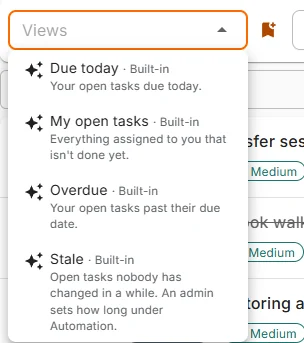
- Built-in views come with Nexus: Due today, My open tasks, Overdue and Stale (open tasks nobody has touched in a while; an administrator sets how long under Automation).
- Yours are views you've saved. Set up the filters, then click the bookmark icon beside Views to save them. Rename or delete your own from the same place.
- Shared with everyone views are visible to the whole workspace. Only administrators create, rename or remove these, and Nexus asks first, because everyone feels the change.
An administrator can also hide a built-in view. Hidden views are listed under Hidden (N), where Show ... again brings one back.
My Tasks
Everything assigned to you, grouped by when it's due: Overdue, Today, This week, Later and No date.
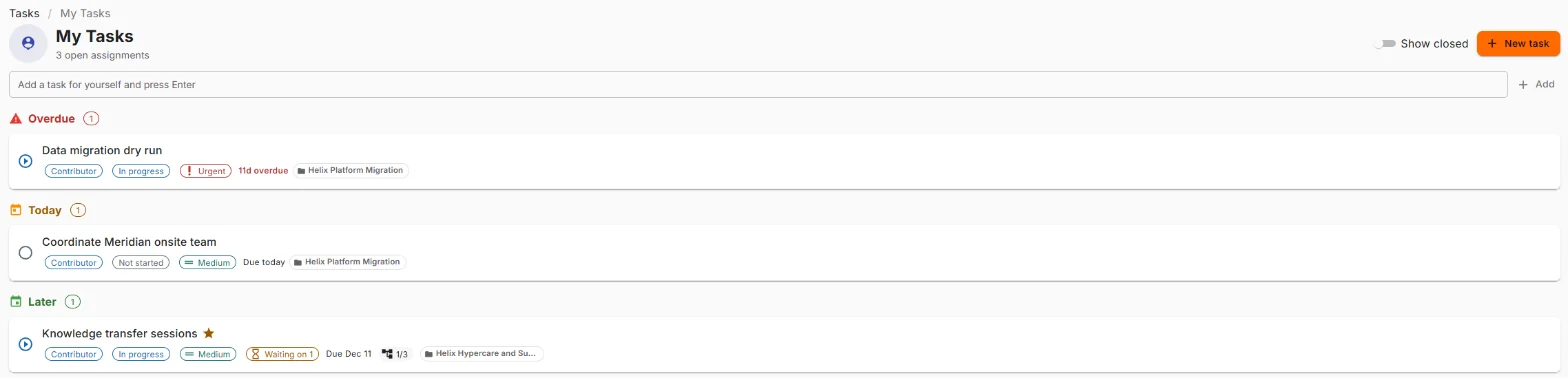
- Each row shows your role on it (Owner, Contributor, Reviewer or Observer), its status, priority and due date.
- Add a task for yourself and press Enter creates a task and assigns it to you in one step.
- Show closed adds a Closed group for work you've finished or cancelled.
- Nothing open? The page says how many finished tasks are hidden, with Show closed. Take the win.
The board
The board shows tasks as cards, one column per status. Drag a card to another column to change its status. If the move can't be saved, the card slides back and a message says why.
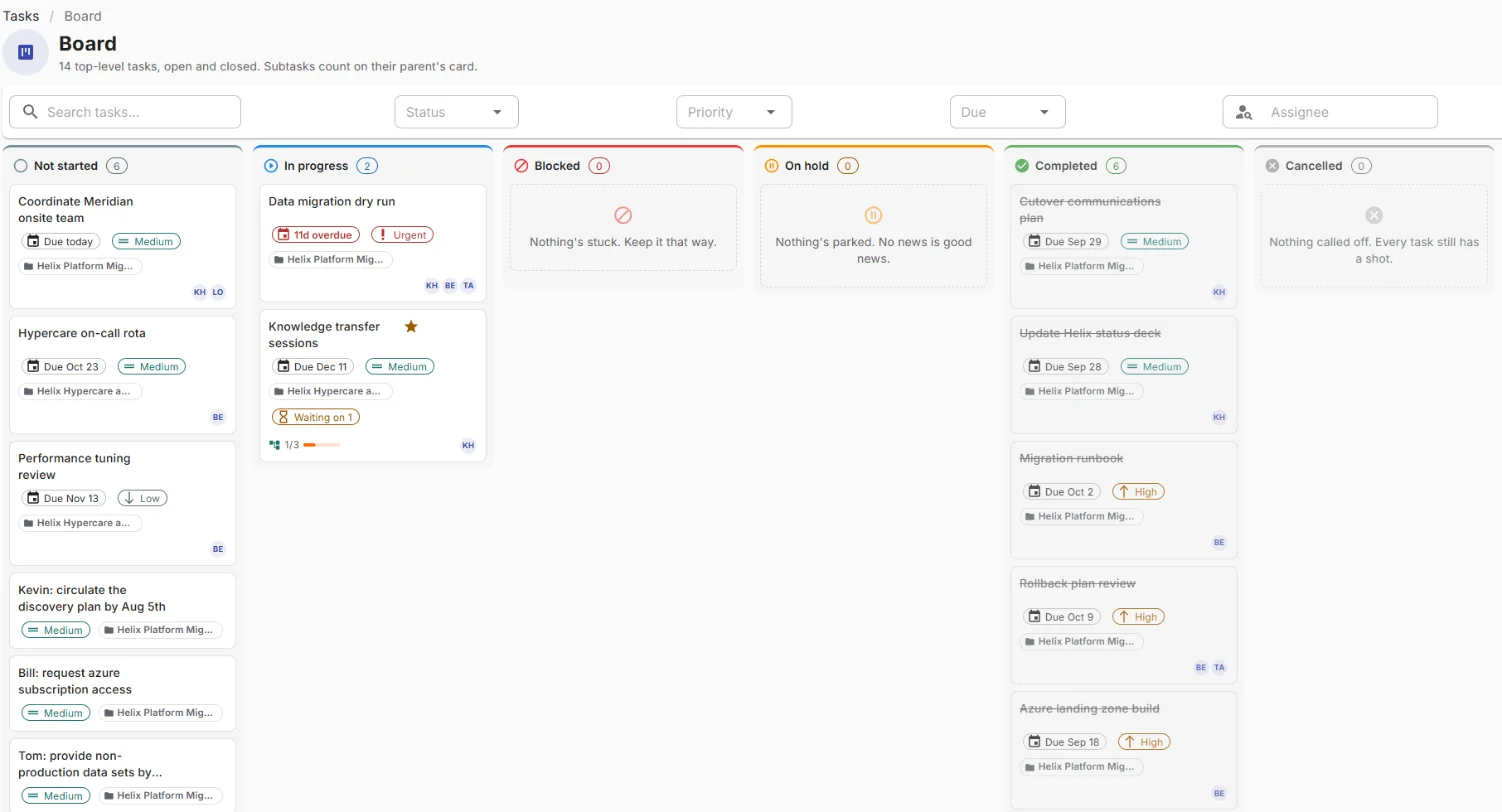
- The line under the title says what's on it: top-level tasks, open and closed. Subtasks count on their parent's card.
- Cards show due date, priority, project, Waiting on, subtask progress and the people on it.
- An empty column says so with a straight face: "Nothing's stuck. Keep it that way."
- The toolbar has Search, Status, Priority, Due and Assignee, plus Favorites only (the star) and the switch between list and board.
On the board of a project that runs Scrum or Kanban, there's more:
- Swimlanes: by assignee, by priority or by epic.
- WIP limits: the tune icon on a column sets how many cards it should hold. A column over its limit is marked. It's advice, not a locked door.
- Each card shows its work item type (Story, Bug, Spike, Epic or Task).
Creating a task
Click New task. A name is enough to start.
The moment you type, Nexus keeps the task as a draft, so you can add people, subtasks and time before you're done. The header says Draft, not created yet, and the main button says Create.

Leave a draft and Nexus asks what you'd like:
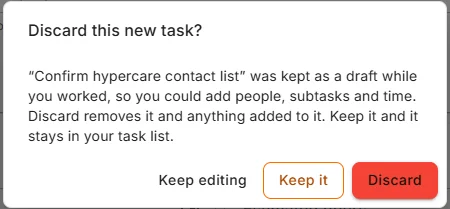
- Keep editing: back to the task.
- Keep it: it stays in your task list.
- Discard: it, and anything you added to it, are removed.
The task editor
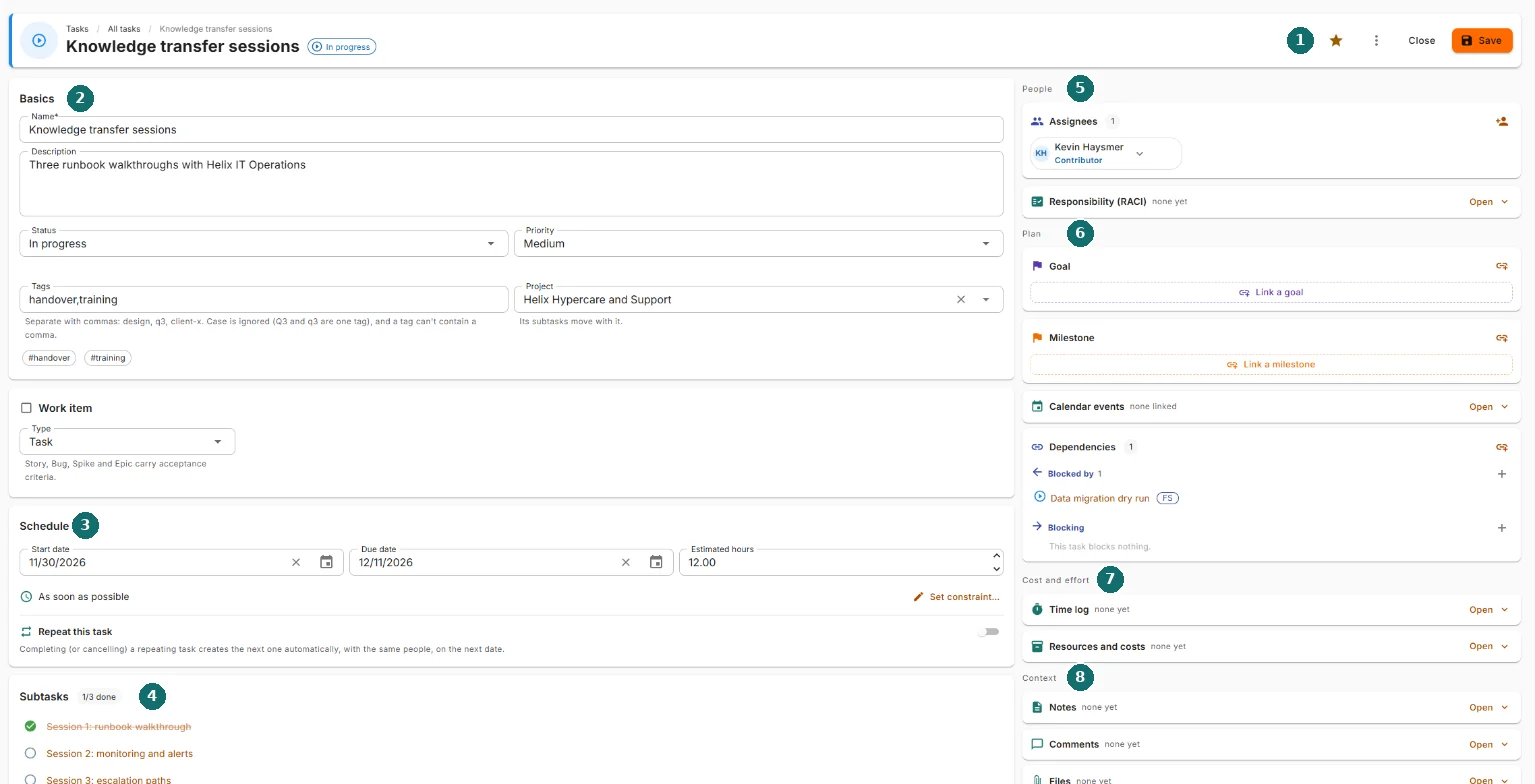
- The header. The star (favorite), the ⋮ menu, the exit button, and Save.
- Basics. Name, description, status, priority, tags and project.
- Schedule. Dates, estimate, scheduling rule and repeat.
- Subtasks.
- People. Assignees and RACI.
- Plan. Goal, milestone, calendar events and dependencies.
- Cost and effort. Time log, and resources and costs.
- Context. Notes, comments, files and risks.
The left side is the task itself. The right side is everything connected to it. A card with nothing in it folds down to one line with Open, so the page shows what the task actually has instead of a wall of empty boxes.
Basics
- Name and Description.
- Status: Not started, In progress, Blocked, On hold, Completed or Cancelled.
- Priority: Low, Medium, High or Urgent.
- Tags: separate them with commas. Case is ignored, so Q3 and q3 are one tag. The chips under the field show exactly what will be saved.
- Project: pick one, or clear it to let the task stand alone. Subtasks move with their parent.
Work item
On tasks in an agile project.
- Type: Task, Story, Bug, Spike or Epic.
- Acceptance criteria, for Story, Bug, Spike and Epic: what has to be true for the work to count as done. Up to 4,000 characters. Click Save criteria.
- Change a Story back to a Task and its criteria are hidden, not lost. Change it back and they return.
Schedule
- Start date, Due date and Estimated hours.
- As soon as possible is the scheduling rule. Set constraint... changes it, for example to Must start on a date.
- Repeat this task: completing or cancelling a repeating task creates the next one automatically, with the same people, on the next date.
Subtasks
Type a name and press Enter to add one. Each subtask has its own status and dates. Click its circle to complete it, or its name to open it. The count beside the heading shows how many are done.
Saving, cancelling and leaving
- Save keeps your changes. Ctrl + S does the same.
- The exit button reads Discard on a new draft, Cancel when you have unsaved changes, and Close when there's nothing to lose. It always says what it's about to do.
- Cancel puts the fields back and stays on the task. A message offers Undo for a few seconds, for the "wait, no" moment.
- Leave with unsaved changes and Nexus asks inside the page, not with a browser pop-up.
- If someone else saved the task while you were working, Save stops and says so, with Reload. Nothing gets overwritten. Reload, look at their change, then make yours again.
The ⋮ menu holds Delete, which sends the task and its subtasks to the recycle bin, where it stays recoverable.
The right-hand side
People
Assignees. Who's doing the work. Assign me adds you; Add someone searches people you can see. Each person has a role (Owner, Contributor, Reviewer or Observer) that you change from the arrow beside their name.
RACI. Who is Responsible, Accountable, Consulted and Informed.
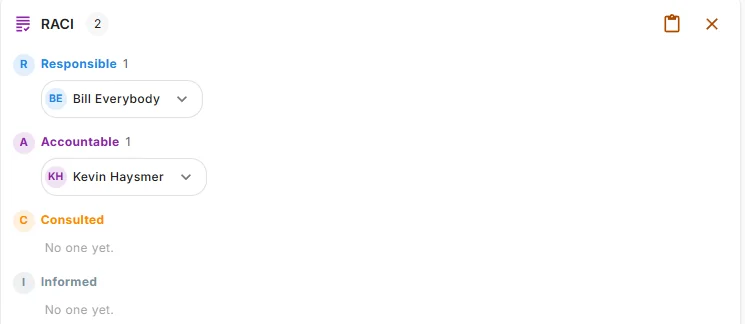
- Pick the role, search for the person, press Enter.
- There can be only one Accountable person. The card flags an empty key role: No Responsible or No Accountable.
- Nexus may suggest someone from the assignments. You accept or dismiss it; it never adds anyone on its own.
- Apply a template (the clipboard icon) fills the roles from a saved pattern.
Plan
Goal and Milestone. Link the task to one of each.
Calendar events. Link meetings or events that belong to this task, so they're one click away.
Dependencies. What this task waits for (Blocked by) and what waits for it (Blocking). Link a dependency opens a dialog:
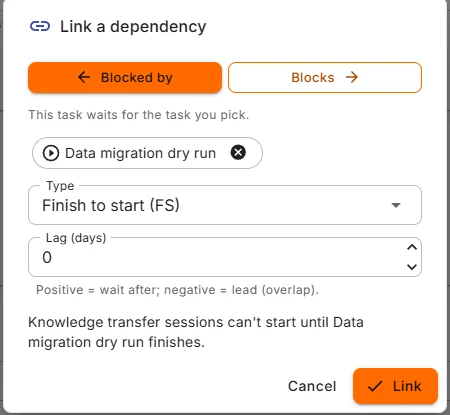
- Choose the direction, then type at least two letters to find an open task.
- Choose the type. The sentence at the bottom explains it with the real task names, so there's no decoding FS in your head.
- Lag adds days of waiting (positive) or overlap (negative).
- Nexus refuses a link that would make a loop, and names the loop.
Cost and effort
Time log. Log hours against the task: a date, billable or not, and for someone else if you're allowed to (On behalf of). The total shows, split by person when more than one has logged time. Entries can be edited or deleted any time, and delete has Undo. The Time guide covers the rest.
Resources and costs. People, equipment, materials and contacts linked to the task, with their costs, and the task's tracked costs total. Links that carry no cost (a contact, say) are marked No cost. Removing a link never deletes the record itself.
If the task uses stock materials, completing it asks you to Confirm materials used, so the stock count stays honest.
Context
Notes. Notebook pages linked to this task. + New linked note asks for a title, tells you where it will be filed (the project's notebook, or your own My Notes), and adds it without leaving the task.
Comments. A running conversation on the task. Edit or delete your own; a deleted comment stays recoverable for a while.
Files. Attach files. Click a file's name to download it.
Risks. What could go wrong. Choose Probability (1 Rare to 5 Almost certain) and Impact (1 Negligible to 5 Severe), and the score and band (Low, Medium, High, Critical) follow.
Capture a lesson from this task. Files a lesson learned on the task's project. It needs the task to be in a project.
AI access. Shown only when AI is on for your workspace. It controls whether AI features may read this task. It doesn't change who can see or edit the task.
Record shows when the task was created and last changed.
The quick view
Click a task in a list or on the board, and a quick view slides in from the right.
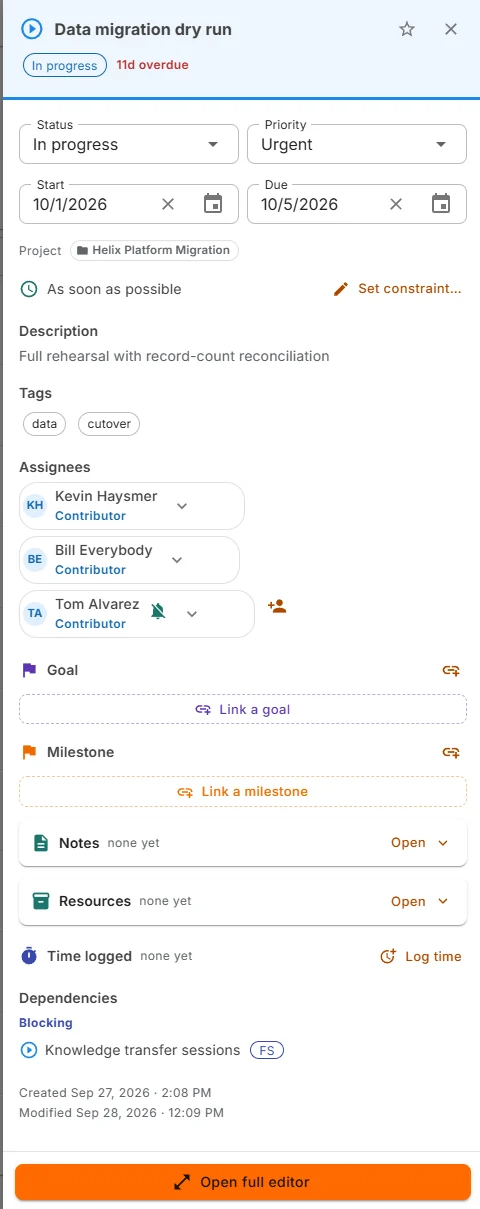
Change the status, priority and dates, see the description, tags, assignees, goal, milestone, notes, resources, time and dependencies, and Log time without leaving the list. Open full editor goes to the whole task.
RACI across everything
RACI, on the Tasks page, answers one question: what is this person on the hook for?
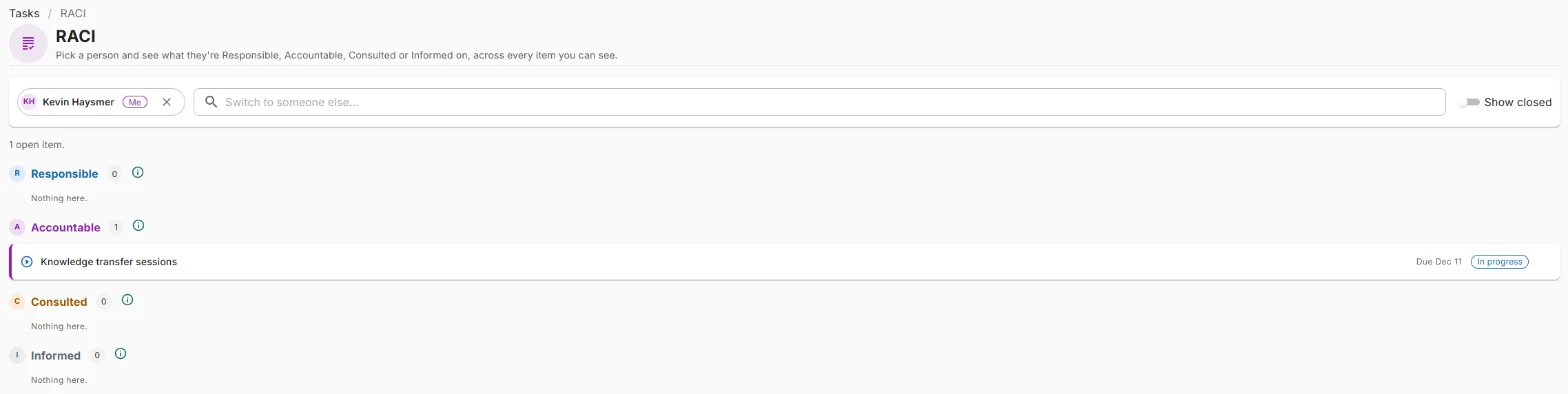
- It opens on you. Search to switch to someone else.
- Their items are grouped by Responsible, Accountable, Consulted and Informed, each with a count.
- It shows open work by default. Show closed adds finished items, struck through, at the end.
- Within each role, blocked work comes first, then in progress, then the rest, soonest due first.
- You only see what you're allowed to see, even when looking at someone else. Their RACI never shows you a task you couldn't open yourself.
Common questions
Why don't the numbers match the list? The tiles count subtasks; the list counts top-level tasks unless Show every level is on. The line under each title says which.
Where are my finished tasks? Hidden by default. Turn on Show closed.
I created a task and it's not in My Tasks. A new task isn't assigned to anyone until you say so. Open it and click Assign me, or use the add box on My Tasks, which assigns it to you.
Why can't I see the Work item card? It appears on tasks in an agile project.
Why is there no AI access box? AI is off for your workspace, or you've opted out of AI features.
I marked a task Never used by AI. Can people still see it? Yes. That setting only controls AI. Who can see a task comes from its project, assignments, RACI and sharing.
Save said the task changed elsewhere. Now what? Someone saved it after you opened it. Click Reload, check their change, and make yours again.
Can I undo Cancel? Yes, for a few seconds, from the message that appears.