
My To-Do is your private list for the small stuff: call the bank, renew the domain, buy the good coffee before Monday. It isn't project work, it doesn't need an owner, and nobody needs a status report on it.
It is private. Nobody else in the workspace can see it, administrators included, and nothing on it shows up in projects, reports, exports, search or the assistant. When something on it turns out to be real work, Make it a task hands it to the rest of Nexus.
Open it from My To-Do, third in the left menu.
The lay of the land
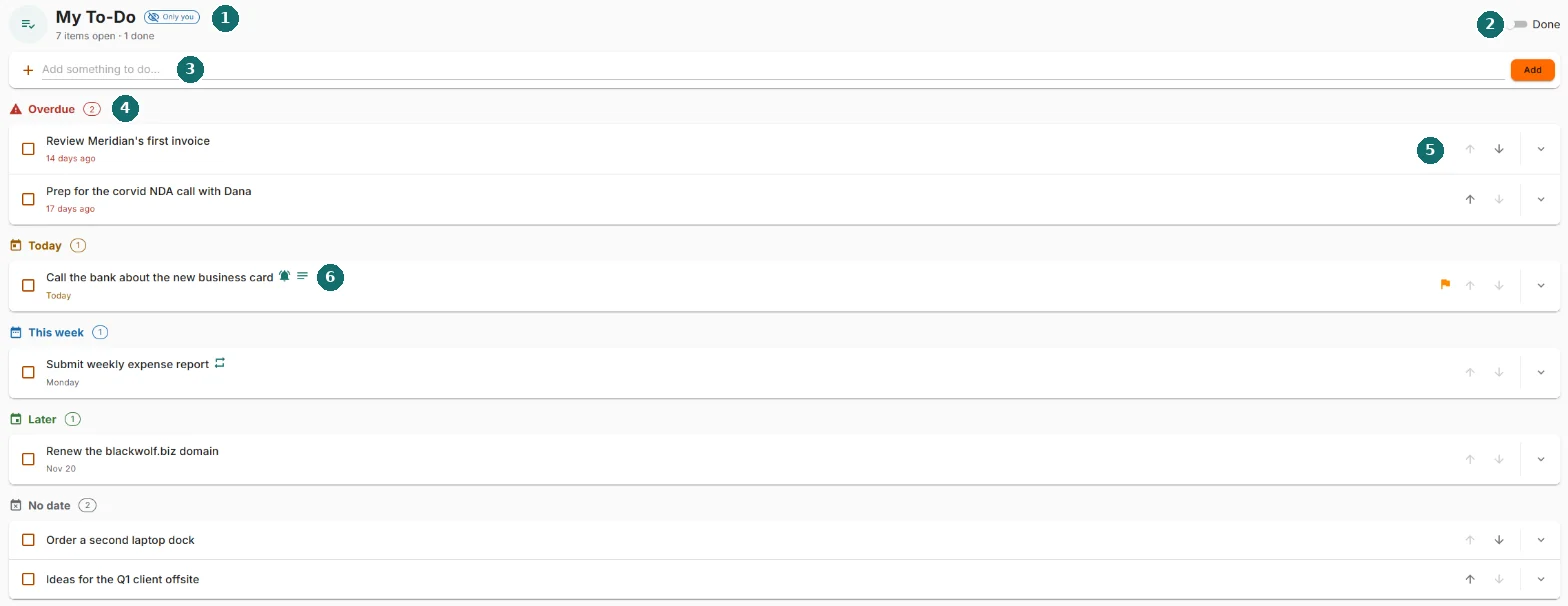
- The header. The Only you badge, and a count like 7 items open · 1 done.
- The Done switch. Shows what you've ticked off. It appears once you've finished something.
- The add box. Type a to-do and press Enter.
- Your list, grouped by when things are due.
- Up and down arrows to reorder, and the chevron to open a to-do.
- Small icons after a title: a reminder is coming, it has notes, or it repeats.
Adding a to-do
Type in Add something to do... and press Enter, or click Add. It lands at the top of the list with no due date. Open it to add anything else.
- Titles run up to 200 characters. Past 150, a counter appears. At 200 the box stops taking more. Put the rest in Notes.
- Press Enter on an empty box and it says "Type something to add first." instead of quietly doing nothing.
How the list is grouped
Open to-dos are grouped by due date, each group with a count:
| Group | What's in it |
|---|---|
| Overdue | Due before today |
| Today | Due today |
| This week | Due in the next six days |
| Later | Due a week or more from now |
| No date | No due date yet |
| Done | Only when the Done switch is on |
"Today" is your today, in your own time zone. A to-do due today stays under Today until midnight where you are, not where the server is.
A single row
- The box ticks it off.
- The title, on up to two lines. Hover a long one to read it all.
- Icons after the title: a reminder is coming (hover for the time), it has notes, it repeats.
- A flag on the right when the priority is anything but Medium.
- Under the title, when it's due: Today, Tomorrow, Monday, Nov 20, 14 days ago.
- ↑ and ↓ move it within its group. The groups themselves follow the dates, so you can't reorder across them.
- The chevron opens it. Clicking the title does the same.
Changing a to-do
Open a to-do to see everything about it:

- Title and Notes.
- Priority: Low, Medium, High or Urgent.
- Due: the date it's due.
- Remind me on and Reminder time. See Reminders.
- Repeat. See Repeating to-dos.
- Delete: the red bin at the right, beside the title.
Your changes are kept when you move on. Opening another to-do, clicking the open one's title, or closing it saves what you typed. If it can't be saved, for example because the title is blank, the to-do stays open and a message says why. Save saves and closes. Cancel is the only way to throw a change away.
Only one to-do is open at a time.
Ticking a to-do off
Tick the box and it moves to Done. Untick it there and it comes back to the top of your open list.
A repeating to-do is different: ticking it moves it to its next date and keeps it open, with a little "Nice. Next one is due Oct 26." If you were behind on it, it jumps to the next date after today, not the one you already missed. No guilt trip.
Repeating to-dos
A to-do can repeat every day, every week or every month. That's the whole menu, on purpose. Anything fancier (every other week, weekdays only, twelve times then stop) belongs on a task.
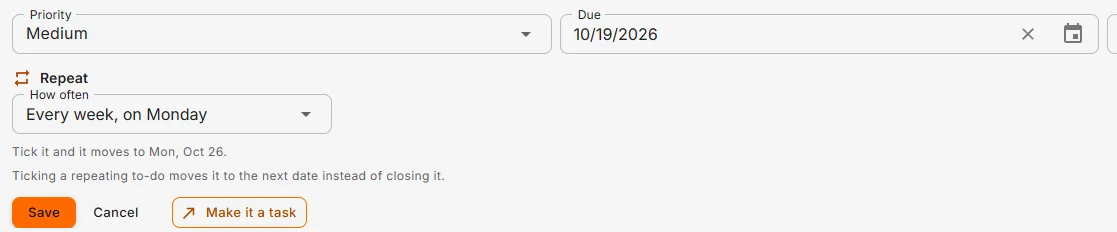
- Give it a Due date first. Until it has one, Repeat is greyed out and says "Set a due date first. The schedule is anchored on it."
- Turn on Repeat and choose How often: - Every day - Every week, on Monday: the same weekday as the due date. - Every month, on the 14th: the same day of the month as the due date.
- The line underneath shows where ticking it will send it: "Tick it and it moves to Mon, Oct 26."
Due on the 29th, 30th or 31st? It lands on the last day of shorter months, then goes back to its day. Due on the 31st: Jan 31, Feb 28, Mar 31.
Changing the due date moves the schedule with it. Clearing the due date turns Repeat off.
Reminders
Set Remind me on and, if you like, a Reminder time. Leave the time empty and it comes at 9:00 AM. Times are in your own time zone, which is named under the fields once you pick a date.
- When it's time, you get a notification in the bell, titled with the to-do. Click it to come back to your list.
- Email is off for to-do reminders unless you turn it on in User settings → Notification preferences, under Personal → To-do reminder.
- Reminders are checked every few minutes, so one can arrive a little after the time you set.
- You can't pick a time that has already passed.
- On a repeating to-do, the reminder moves with it and keeps the same gap. A reminder at 7:00 PM the evening before stays the evening before.
Deleting, and getting it back
The bin on an open to-do deletes it straight away, and a message offers Undo:

Clear done, at the top of the Done group, removes everything you've ticked off. It asks first and says how many, and the message afterwards also has Undo.
The Done pile
Turn on the Done switch to see what you've ticked off, newest first, each with when you did it.

The Done group shows your 50 most recent. If there are more, a line at the bottom says so: "Showing the 50 most recent of 214 done." The count in the header is always the real total. A repeating to-do also shows how often you've done it, like done 4 times · last on Sep 2.
Making it a task
When a to-do turns out to be real work, open it and click Make it a task.
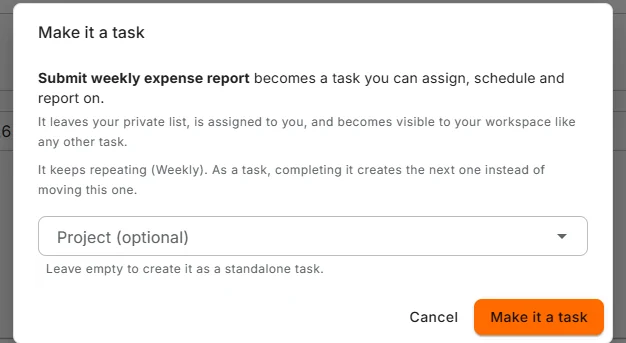
- File it under a project, or leave the project empty for a standalone task.
- The task is assigned to you, and only you. Reassign it from the task if someone else should do it.
- It keeps its title, notes, priority and due date.
- A repeat carries over. As a task, completing it creates the next one instead of moving this one. The dialog says so.
- A reminder doesn't carry over. Tasks notify you as the due date gets close and when it goes overdue instead. The dialog names the reminder you'd lose.
- Anything you'd typed but not saved is saved first.
The to-do then leaves your list, and the task is visible to your workspace like any other. This can't be undone from My To-Do. It lives with the tasks now.
Your to-dos on the Calendar
A to-do with a due date also shows on your own Calendar, on the day it's due. Click it to jump to My To-Do, or drag it to another day and its due date moves with it. Nobody else sees it there either, it never prints, and it's never included in a calendar export.
When the list is empty
- "Nothing on your list. That's allowed." You have no to-dos at all. Enjoy it.
- "All clear." Everything is done and the Done switch is off. It says how many are hidden, with Show them.
- "Your list couldn't be loaded. Nothing has been lost." Something went wrong reading it. Click Try again.
Who can see it
Only you.
- No one else in the workspace can see your list or anything on it, whatever their role.
- To-dos never appear in search, the command palette, the recycle bin, projects, reports, exports or the assistant.
- A reminder notification goes to you alone.
- Make it a task is the one way something leaves the list, and only when you choose it.
Common questions
My to-do shows as Overdue but it's due today. It shouldn't. Groups follow your own time zone. If you see it, note the time and tell us.
Why can't I set "every other week"? To-dos repeat daily, weekly or monthly only. Make it a task for anything more.
Why did my repeating to-do jump several days? You ticked one you'd fallen behind on, so it moved to the next date after today instead of one that's already gone.
Where did my deleted to-do go? Nowhere anyone else can see. Use Undo straight away. There's no recycle bin for to-dos.
Can I drag to-dos around the list? No. Use ↑ and ↓. Order only applies within a group, because the groups follow the dates. (On the Calendar, you can drag one to a new day.)
Why can't I type a longer title? Titles stop at 200 characters. The rest goes in Notes.