
Notes is where meeting notes, decisions, plans and half-finished thoughts live. Every page is a Word document: it looks the same in Nexus as it does in Word, it exports as a real .docx, and a Word file you import becomes a page exactly as it is. No "this formatting may not be supported." It's Word.
Pages sit in sections, and sections in notebooks. You have notebooks of your own, and every project, program, portfolio and contract you can see has one too.
Open it from Notes in the left menu.
Three things Notes is for
The lay of the land
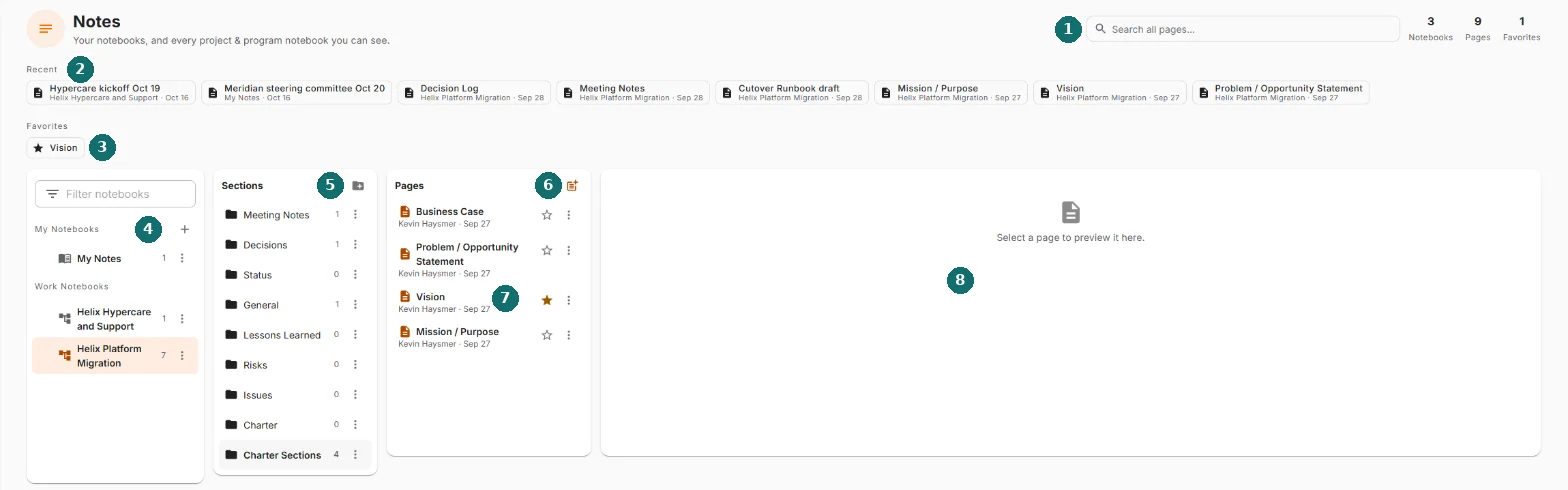
- Search all pages, and counts of your notebooks, pages and favorites.
- Recent. The pages edited most recently, each with its notebook and date.
- Favorites. Pages you've starred.
- Notebooks. My Notebooks are yours. Work Notebooks belong to projects, programs, portfolios and contracts.
- Sections of the open notebook. The folder icon adds one.
- Pages of the open section. The page icon makes a new one.
- The star adds a page to Favorites, and ⋮ holds everything else.
- The page itself, once you click one.
Click a page and it takes the whole screen. The address in your browser changes to that page, so Back, Refresh and bookmarks all bring you back to it. The arrow beside the title (Back to pages) brings the columns back.
Every row opens with a click, or with Enter or Space when it has the keyboard focus.
Notebooks
- My Notebooks. The + creates one: a name and, if you like, a description. A new notebook starts with a section called General, so your first page is one click away. My Notes is your default notebook. Nexus files things there when it has nowhere better to put them.
- Work Notebooks. Each is named after its project, program, portfolio or contract, and you see it when you can see that record. A project's notebook sits under its program's.
The open notebook shows its description under its name. Any notebook shows it when you hover.
Filter notebooks narrows both groups as you type, sub-notebooks included. If you can see more than 15 Work Notebooks, the group folds down to the ones you're working in. Show all unfolds it.
A notebook's ⋮ offers:
- Add sub-notebook. Notebooks nest up to seven levels deep. If you need eight, we'd gently suggest a different filing system.
- Move up and Move down. You can also drag a notebook onto another in the same group.
- Export to Word. The whole notebook as one document.
- Rename and Move to bin. Your own notebooks only. A Work Notebook follows its record.
Sections
The folder icon adds a section. Two sections in one notebook can't share a name, whatever the capitals. Nexus says so under the name field.
A section's ⋮ offers Rename, Move up, Move down, Export to Word, Import Word document… and Move to bin. You can also drag sections into a new order.
Pages
The page icon at the top of the page list offers two ways to make a page:
- New page. Opens the template gallery (see Templates). Blank page asks for a name first. Press Enter to keep the suggested one.
- Import a Word document… The file becomes the page, exactly as it is. Your copy is untouched. Only real Word files are accepted.
Each row shows the title, who edited it last and when, and any tags. The ⋮ offers Rename, Sensitivity…, Copy link, Move up, Move down, Move to… (another section or notebook), Export to Word, Save as template and Move to bin. You can also drag pages into a new order, or onto another section.
Tags. Type them under a page's title (Add a tag…). A section's tags appear above its page list. Click one to show only those pages.
Open pages. Every page you open joins a strip above the page, so you can hop between a few without going back to the list. The ✕ closes one. The strip appears once you have two pages open.
Writing a page
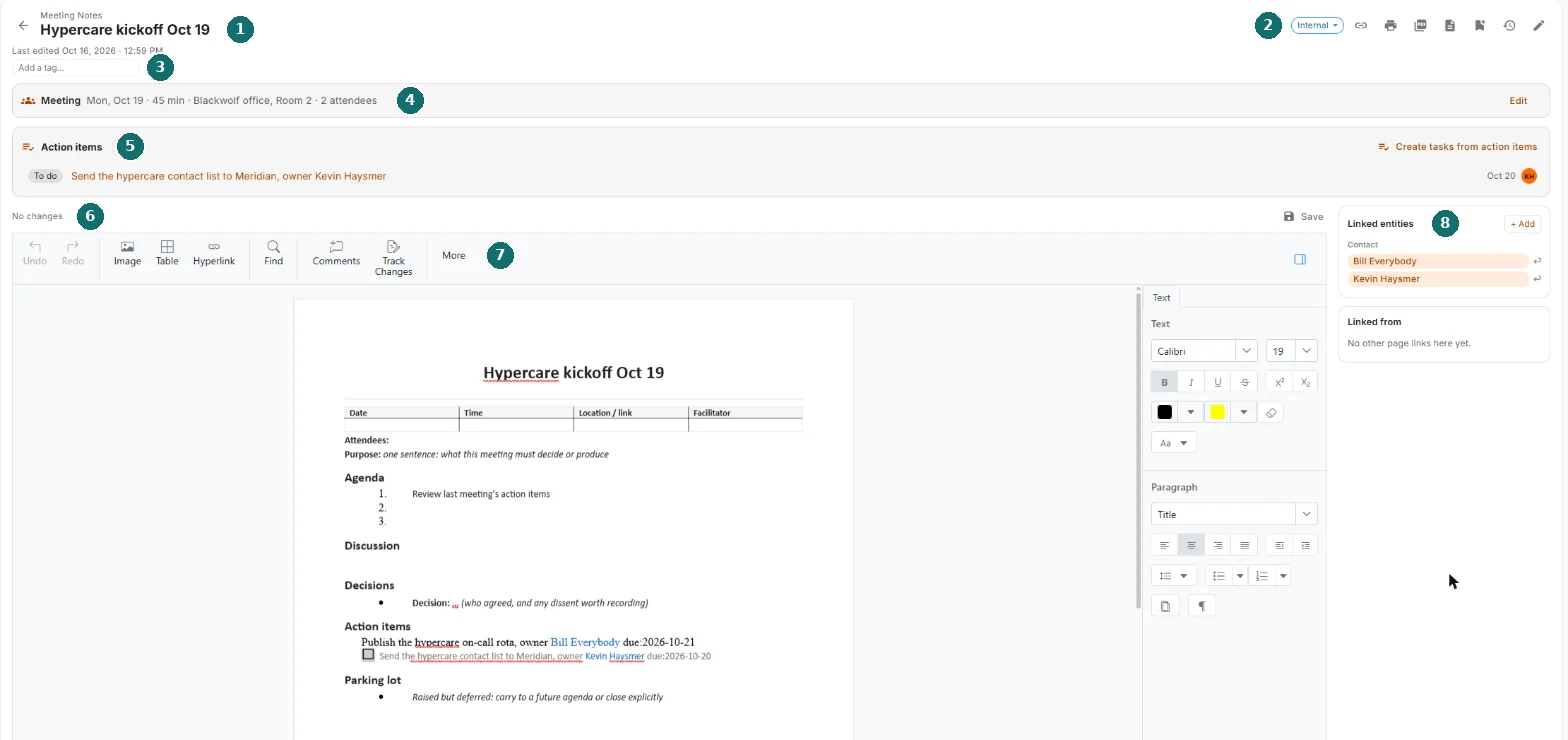
- The title, with its section above it and Last edited below.
- The page's tools: sensitivity, copy link, print, PDF, Word, save as template, version history and rename.
- Tags.
- Meeting details, on a meeting page.
- Action items that have become tasks.
- Saved (with the time) or No changes, and Save.
- The toolbar.
- Linked entities and Linked from.
The page is a Word document, edited in place. The toolbar keeps to what notes need: Undo, Redo, Image, Table, Hyperlink, Find, Comments and Track Changes. More adds the page layout tools. The panel button at the right of the toolbar opens the formatting pane (fonts, paragraphs, styles), and Nexus remembers whether you like it open.
Pasting from Word keeps the formatting. Spelling is underlined as you type.
Saving is automatic. Two seconds after you stop typing, the page saves and the line above the toolbar says Saved with the time. Save, or Ctrl+S, saves right away. Leave with unsaved changes and Nexus saves first. You'd have to try quite hard to lose work here.
If someone else saved the page while you were typing, Nexus stops, says so, and keeps your text on screen. Reload this page brings in their version. Copy out anything of yours you want to keep first.
The page's tools
- Sensitivity (Public, Internal, Confidential, Restricted). It decides whether the page can be used as AI context. Click it to change it, or use Sensitivity… in the page's ⋮.
- Copy link. A link straight to this page.
- Print. Prints the page exactly as the PDF lays it out.
- Export as PDF and Export as Word.
- Save as template. See Templates.
- Version history. See below.
- Rename (the pencil). Renaming a page also changes the title at the top of its document.
Version history
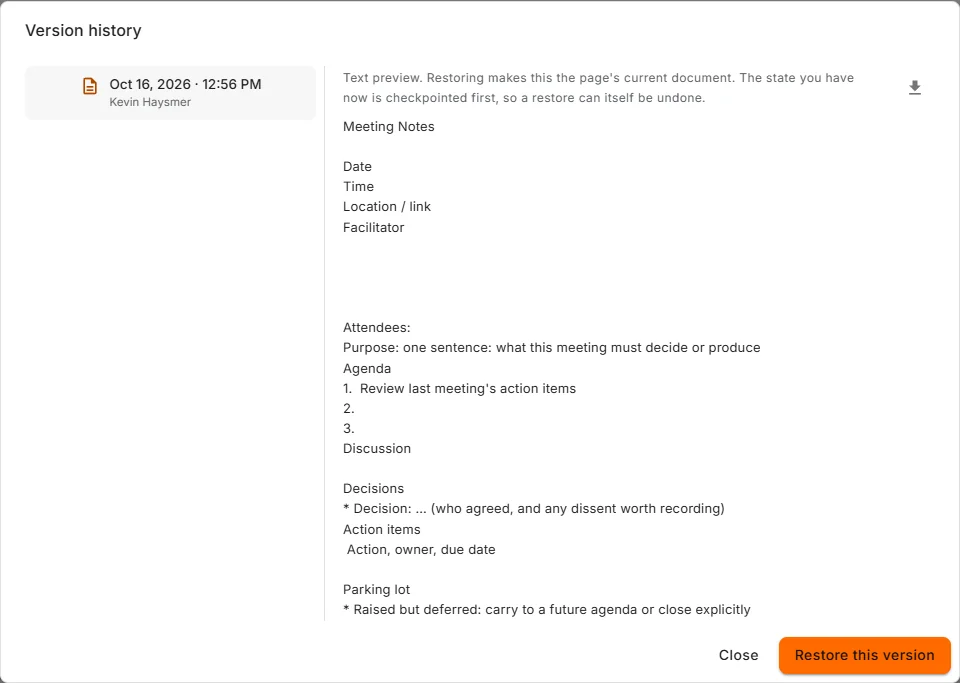
The clock icon opens the page's version history: checkpoints of how the page was, newest first. Pick one to read it, download it as a Word file, or Restore this version. Restoring checkpoints the current page first, so a restore can be undone too.
Nexus takes a checkpoint when you come back to a page after a break, when someone else edits it, and whenever a save would replace most of the page's text. It keeps the last 50.
Mentions and links
Mentioning something
Type @ anywhere in a page. A search opens at the cursor. Type a few letters of a project, task, person, event, contract, client account, note, or anything else you can see, then press Enter or click a result.
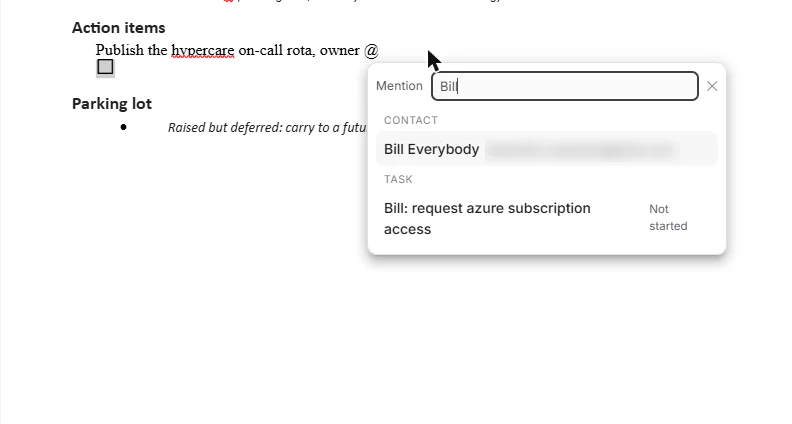
The @ becomes the record's name in blue, and the page is linked to it when it saves. Keep typing after it as usual.
- To unlink, delete the name from the page. The link goes on the next save.
- A mention keeps the name as it was when you wrote it. The links panel shows the current one.
- Esc closes the search and leaves the @ as typed. Sometimes an @ is just an @.
Linked entities and Linked from
The panel beside the page lists everything the page links to, grouped by type. A link made by a mention carries the ↩ marker, and you remove it by editing the page. + Add links something without mentioning it, and its ✕ removes it again.
Linked from lists the other pages that link to this one.
Something you can't open shows as (no access), and something deleted as (removed).
Notes on records
Tasks, projects, programs, portfolios, goals, milestones, events, contracts, client accounts and resources all have a Notes panel listing the pages linked to them.
- Link a note attaches a page that already exists. You need to be able to edit that page.
- + New linked note writes a new one. Nexus tells you which notebook and section it will go in before it creates it, and Open it takes you there. It goes in the record's own notebook if you can edit it, and in My Notes otherwise.
- ✕ unlinks a note that was linked by hand, from either end. A note linked by a mention is unlinked by editing the note.
Meeting notes
On any page, Make this a meeting page adds a meeting header: Date, Duration (min), Location and Attendees. Me adds you. Attendees can be people in your workspace, contacts, or any email address, each shown with their email. Once it's filled in, the header folds to one line (Mon, Oct 19 · 45 min · Blackwolf office, Room 2 · 2 attendees) and Edit opens it again.
Link a calendar event ties the page to an event instead. The date, time, place and attendees then come from the calendar, and the header links back to the event. From the calendar, an event's panel offers Take notes, which makes a meeting page for it. Unlink the calendar event (in the header's ⋯) keeps the details the page last showed.
Action items
The checkbox lines on a page are its action items. The Meeting Notes template starts you off with a couple.
- Create tasks from action items turns each line into a task: in the project, when the notebook belongs to one, or otherwise as a task of your own. Press it again and it updates those tasks rather than adding new ones. Delete a line and its task is left alone.
- Write a date as due:2026-10-21 (or just 2026-10-21) on the line and it becomes the task's due date.
- @mention a person on the line and the first one becomes the task's owner.
- When a page has lines that aren't tasks yet, it says how many, with Create tasks.
The tasks then show in the Action items strip with their status, due date and owner. Click one to open it.
Meetings produce a lot of "someone should." This turns it into "Bill will, by Wednesday."
Templates
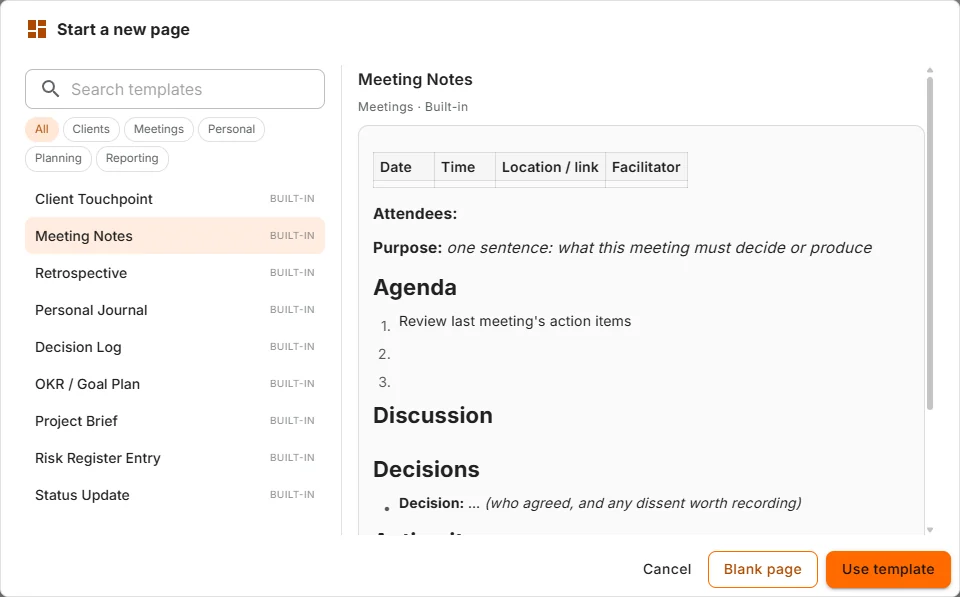
New page opens the gallery. Search, or browse by category (Clients, Meetings, Personal, Planning, Reporting), click a template to preview it, then Use template. Blank page skips it.
The built-in templates: Client Touchpoint, Meeting Notes, Retrospective, Personal Journal, Decision Log, OKR / Goal Plan, Project Brief, Risk Register Entry and Status Update.
Save as template (in the page's tools, or its ⋮) adds a page to your templates, with a name and a category. It keeps the page's content and whether it's a meeting page.
Quick note
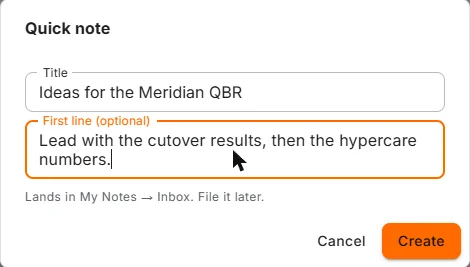
Press Alt+N anywhere in Nexus outside a page you're editing. Quick note opens with a title ready (Quick note Oct 16, until you type over it) and an optional first line. Create files it in My Notes → Inbox and opens it. File it properly later. Or don't. We won't tell.
Searching
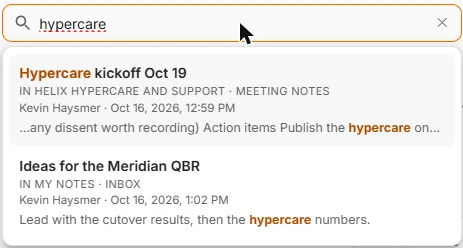
Search all pages… at the top of Notes searches the titles and text of every page you can see, as you type. Pages whose title matches come first, then the most recently edited. Each result shows its notebook and section, who last edited it and when, and the matching text. The arrow keys move through results and Enter opens one.
A project's (or other record's) Notes tab has Search this notebook… for that notebook alone.
Pages Nexus writes for you
Some pages are generated from a record: a project's or portfolio's published charter versions, and the pages the risk, issue and lessons learned registers keep. They're marked generated, and a note above the page says why you can't edit it, where it's changed instead, and links there. You can still read, print, export and link them.
Who can see and change a page
A page follows its notebook. Whoever can see a project sees its notebook. Your own notebooks are yours until you share them. A page you can only read opens with viewing above it, and the editing controls stay out of the way.
Deleting and bringing back
Move to bin works the same for pages, sections and notebooks. The message afterwards says what went with it ("Planning" with its 3 pages moved to the recycle bin.) and has Undo, which brings back the pages, their favorites and their links.
Deleted items stay in the recycle bin for 30 days, unless your workspace has changed that. A section restored beside another of the same name comes back as Name (2).
Files
The Files panel under a page holds attachments up to 25 MB: documents, images, spreadsheets and zip files. Files are exactly as private as the page they're attached to. Attach file adds one, and each file shows its size, who added it and when.
Keyboard
- Alt+N opens Quick note.
- Ctrl+S saves the page now.
- @ in a page starts a mention. Enter picks a result, Esc cancels.
- Tab reaches every row, button and menu. Enter or Space opens or presses it.
- In search, the arrow keys move through results and Enter opens one.
Common questions
Why is every page a Word document? So what you write in Nexus is exactly what you'd send, print or open in Word, with nothing lost on the way.
Where did my quick note go? My Notes → Inbox.
Why can't I rename or delete a Work Notebook? It belongs to its project, program, portfolio or contract, and follows it.
I can't edit a page. You can view it but not change it. The page says viewing above it. Ask whoever owns the notebook.
A mention shows an old name. Mentions keep the name as it was when written. The links panel shows the current one.
Can I get an old version back? Yes. Use Version history, pick a checkpoint, then Restore this version.