
A Smart List is a table you design yourself. You pick the columns, Nexus keeps the rows. Server inventories, vendor contacts, a hardware refresh plan, the movies you keep meaning to watch. If you'd otherwise keep it in a spreadsheet that only you can find, it probably belongs here.
When a list grows into real operational data, you can convert it into a resource section, where each row becomes a record with its own page. A list with a count column can become an inventory the same way.
Open it from Smart Lists in the left menu.
Three things Smart Lists are for
The Smart Lists page
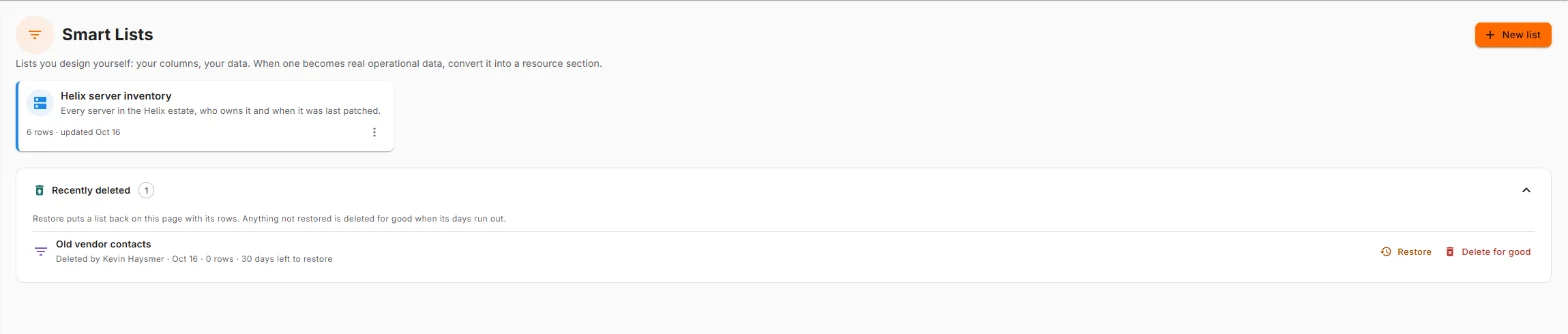
Each list you can see has a tile: its icon and color, its name and description, how many rows it holds and when it was last updated. A star means you've starred it. Click a tile, or its name, to open the list.
The ⋮ on a tile offers List settings… and Delete list, if you're allowed to change the list.
Recently deleted, at the bottom, holds the lists you've deleted. See Deleting and bringing back.
Making a list
- Click New list.
- Give it a Name and, if you like, a Description. The description shows under the name, here and on the list itself.
- Click Create, or press Enter. The list opens with Columns ready for you to design.
A new list is yours alone until you share it.
Designing the columns
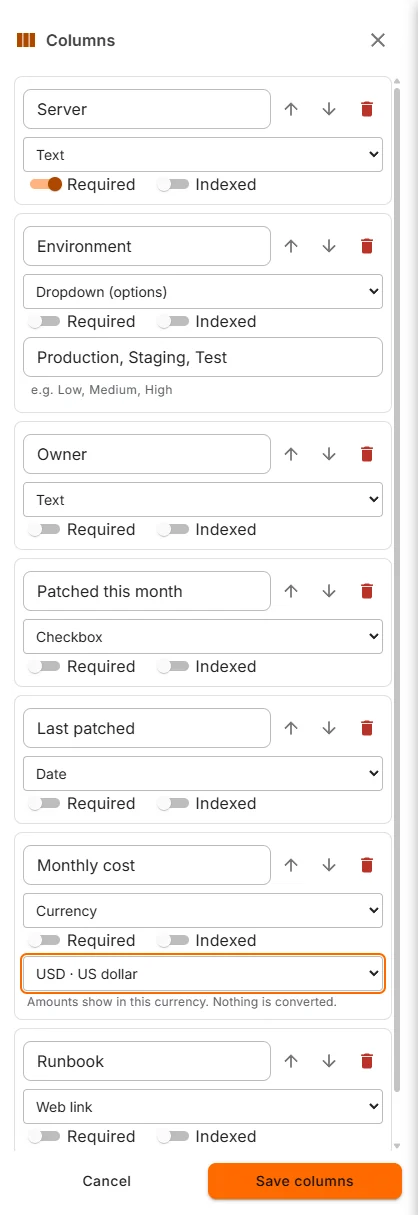
Columns (at the top of the list) opens the column designer. Add column, give it a name, and pick its type:
| Type | Holds |
|---|---|
| Text | A short line of text. |
| Long text | Several lines. In a cell, Enter starts a new line and Ctrl+Enter saves. |
| Number | A number. |
| Currency | An amount. Pick a currency for the column, or leave it as plain numbers. Amounts show in that currency. Nothing is converted. |
| Date | A date, picked or typed. |
| Checkbox | Yes or no. One click ticks it. |
| Dropdown (options) | One of a set of choices. Type the options separated by commas, like Production, Staging, Test. |
| Web link | A web address. It opens in a new tab. |
| Link to a record | A record from any resource section, built-in or converted. |
Each column also has:
- Required. A row can't be added or saved without it.
- Indexed. Keeps the column sortable once a list passes 2,000 rows. A list can index only a limited number of columns of each type. Hover over the switch for the numbers.
- ↑ and ↓ to reorder, and the bin to remove it.
Click Save columns when you're done.
Changing columns on a list that has rows. If a change means some rows no longer fit (a column made required, say, while some rows leave it empty), the designer tells you how many and why, before saving. Save anyway keeps those rows exactly as they are and marks them as needing attention. Nothing is thrown away.
Removed columns stay at the bottom of the designer for a while, with Put back. Remove a column by mistake and you can have it back, values and all.
If someone else changed the columns while you were editing, nothing is saved. The designer tells you which of your new columns to add again and offers Reload columns.
Working in a list
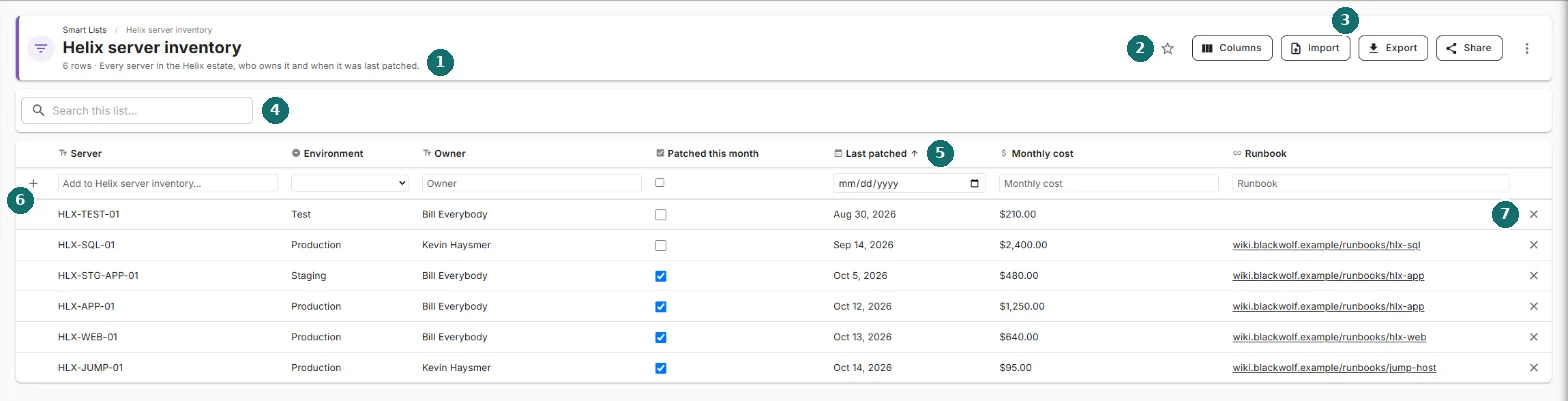
- The name, the row count and the description.
- The star. Stars the list for you alone.
- Columns, Import, Export, Share and ⋮ (List settings, Convert to resource section, Delete list).
- Search this list.
- Column headers. Click one to sort by it. Click again to reverse. The arrow shows which way.
- The new-row line. Type in it and press Enter (or click +) to add a row.
- ✕ deletes a row.
Adding rows
The new-row line sits right under the column names, so you can add a row from anywhere in a long list. Each box matches its column: a dropdown for a dropdown column, a date picker for a date, and so on. Fill in what you have and press Enter.
If the row can't be added (a required column is empty, say), it isn't lost. The line keeps what you typed, outlines the problem column, and says "Not added." with the reason. Fix it and press Enter again.
New rows stay pinned at the top, under Added just now, until you change the search, filter or sort. That way they don't vanish into the middle of a sorted list the moment you add them.
Link to a record columns are filled after the row exists: add the row, then click the cell and pick.
Changing a cell
Click a cell to edit it. Enter saves, Tab saves and moves to the next cell, Esc leaves it as it was. Checkboxes save with one click.
If a change is refused, the cell says "Not saved." with the reason and the value that is actually saved, so you're never guessing which one stuck.
Rows needing attention
When a column change leaves some rows short of the rules, a chip appears beside the search box: 2 rows need attention. Click it to show only those rows. Hover over a cell to see what's wrong. Click it again to show every row.
Deleting a row
The ✕ at the end of a row deletes it straight away, with Undo in the message for ten seconds. Missed it? The row is also in the recycle bin.
Searching and sorting
Search this list… narrows the rows as you type. The count under the name then reads 3 of 6 rows. Sort by clicking a column's name. Link to a record columns can't be sorted, because the names they show live on other records.
Big lists
A list holds up to 10,000 rows. Rows load in blocks as you scroll, so a big list opens as fast as a small one. From 8,000 rows, the list suggests converting it to a resource section. At 10,000 it's full, and converting is how it keeps growing.
Importing rows
Import reads Excel (.xlsx), CSV (.csv), tab-separated text (.tsv, .txt), a table in a Word document (.docx) or a Microsoft Works database (.wdb), up to 10 MB.
- Choose file. If a workbook or document holds more than one sheet or table, pick which one.
- Map the columns. The first row is the headers. For each, choose an existing column, Create new column, or Skip this column. The first few values show under each header, so you can see what you're mapping.
- Import. Rows go in with a progress bar and a Stop button. Stopping keeps the rows already added.
Afterwards Nexus lists any rows it skipped, by their row number in your file and why, and you can download them to fix and import again. Undo import takes back the whole import, as long as none of its rows have been edited since.
If a date column could be read day-first or month-first, Nexus asks rather than guesses. 03/04 is a date, not a coin toss.
Exporting
Export downloads the list as an Excel workbook (.xlsx) or a CSV file (.csv). It exports what you're looking at: if a search, sort or needing attention filter is on, the export follows it.
Sharing a list
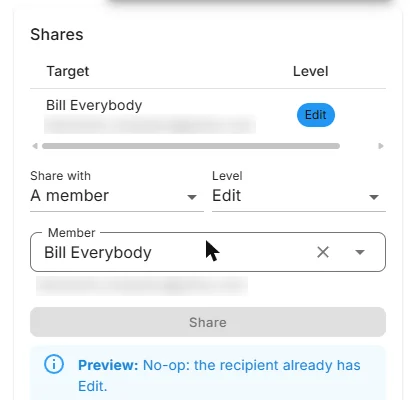
Share opens the share panel. Sharing a list shares all of its rows. The levels:
| Level | Can |
|---|---|
| View | Read the list. |
| Comment | Add and import rows. |
| Edit | Change cells and delete rows. |
| Admin | Design columns, change list settings, share, convert and delete. |
Pick a person, pick a level, and check the Preview line, which tells you what will change before you click Share.
What a person can do shows in what they see. Someone with View access doesn't get a new-row line or a Columns button they can't use.
List settings
List settings… (in the ⋮) changes the list's Name, Description, Color and Icon. The color and icon show on the tile and at the top of the list.
Converting to a resource section
When a list becomes real operational data, Convert to resource section… (in the ⋮) moves it into the Resources hub. Any list can be converted, whatever its columns.
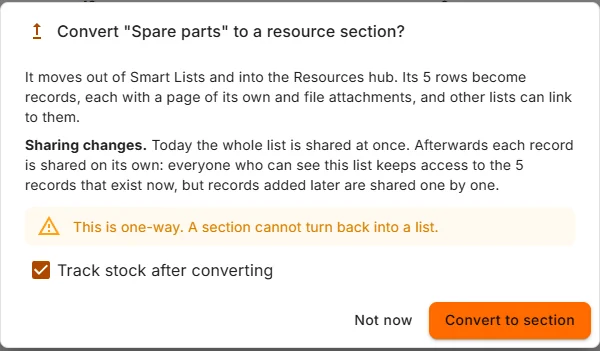
Click Convert to section. Not now leaves the list as it is. On a big list, converting can take a minute. Keep the page open until it's done. If it fails, the list is not converted and nothing in it changes.
What you get
You land on the new section in Resources. The list is gone from Smart Lists, and the section takes its name: the list Helix server inventory becomes the section Helix server inventory, with a New Helix server inventory button.
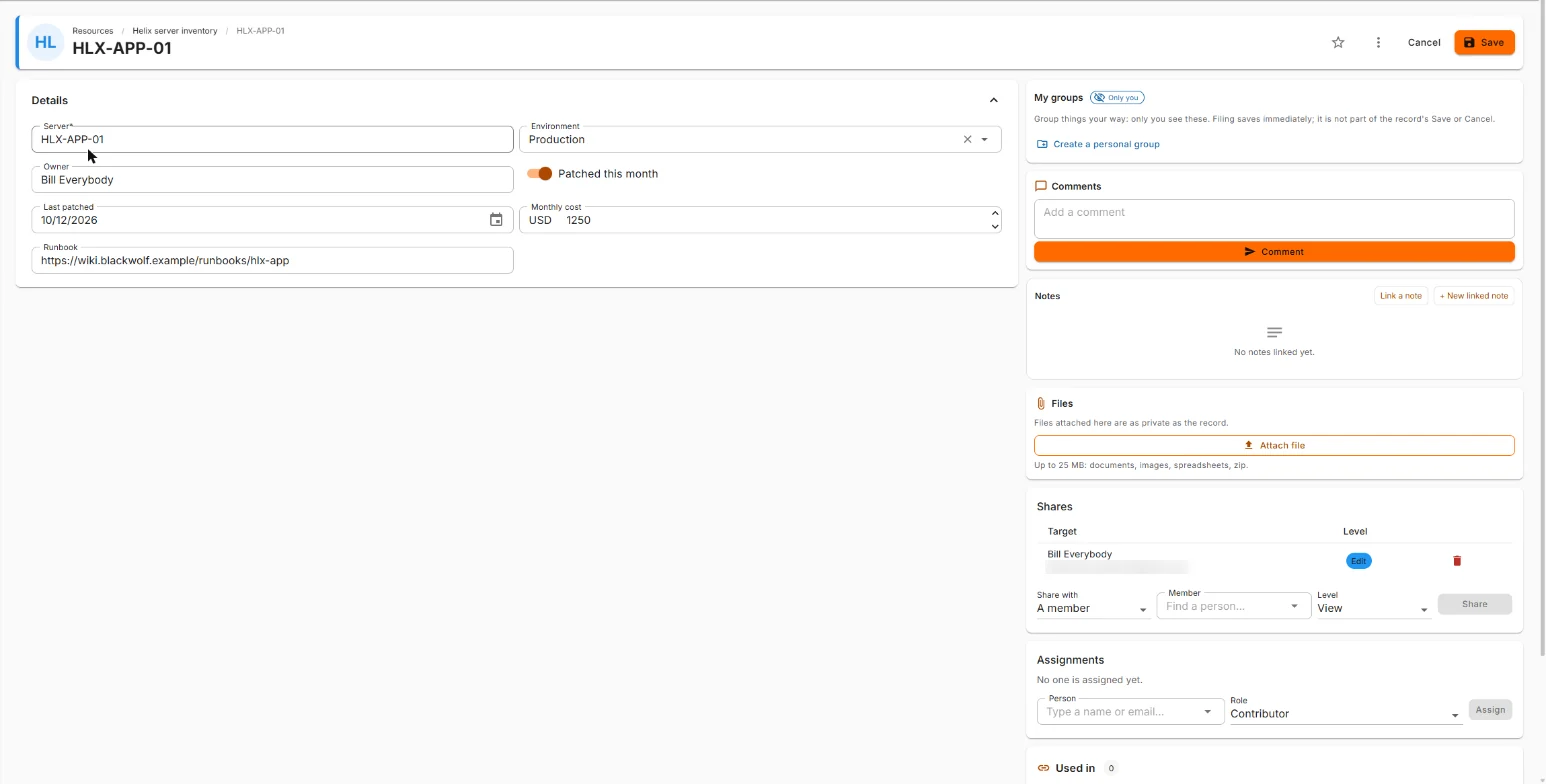
Each row is now a record with a page of its own. Your columns become its Details, with the same names, types and values. Beside them, every record gets what a row never had: Comments, Notes, Files, its own Shares, Assignments, and Used in, which lists the tasks, projects and programs that link to it.
The section shows its records as Cards, a List, a Grid or a Kanban board (Kanban needs a dropdown column to sort by). Its columns are fixed at conversion. There's no column designer on a section, so get the columns right while it's still a list.
Turning a list into an inventory
Any list with a number column can become an inventory: a stock count per record that work draws down, with reorder alerts. This is for things you keep and use up, like spare parts, consumables, loaner laptops. Tracking stock is part of the Pro plan's inventory.
Design the list for stock
Give the list a Number column for the count, and any of these you want:
| Column | Type | Becomes |
|---|---|---|
| On hand | Number | The opening count. Required. |
| Min level | Number | Below this, the record shows Below minimum. |
| Max level | Number | Above this, it shows Over maximum. |
| Reorder point | Number | At or below this, it shows Reorder. |
| Unit cost | Currency or Number | What one costs. A record with a unit cost adds its cost to the work that uses it. |
The names are up to you. You match them up in the next step. Other columns (part name, SKU, shelf) come across as ordinary details.
Convert with Track stock
- Open the list's ⋮ and pick Convert to resource section….
- Tick Track stock after converting. It appears when your workspace has inventory and you can manage it.
- Click Convert to section. You land on the section with Track stock open.
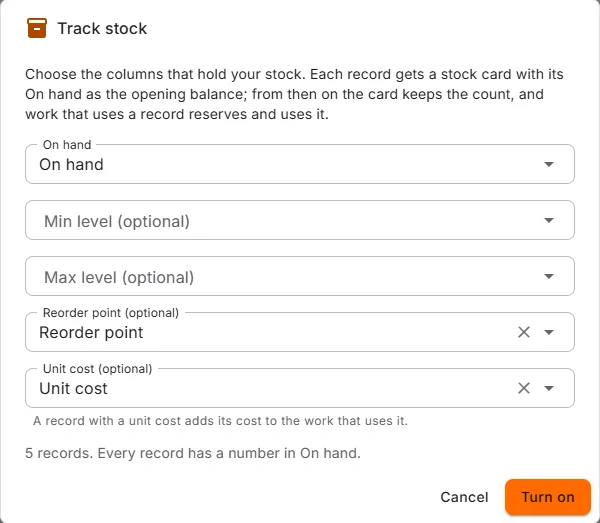
- Pick which column is On hand, then any of Min level, Max level, Reorder point and Unit cost. Nexus picks the first number column as On hand, so check it. Each column can fill only one role.
- Read the line at the bottom. 5 records. Every record has a number in On hand. means every count came across. If some records have no number there, it says how many, and those start at 0.
- Click Turn on. The message reads Stock is tracked for 5 records.
What changes

- The section gains a stock filter (All stock, Needs reorder, Below minimum, Negative, Over maximum), an Available column and a Stock column with a chip such as Reorder.
- Each record gets a Stock card. The card now owns the count. On hand, Min, Max and Reorder point leave the Details form, so nobody types over a count by accident.
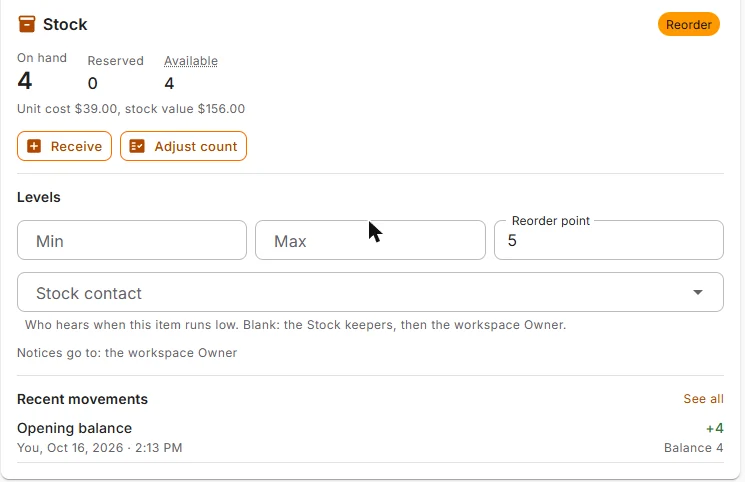
The card shows On hand, Reserved (held by open work) and Available, the unit cost and the stock value. From here you Receive stock or Adjust count, set the Levels, and choose a Stock contact, the person who hears when it runs low. Recent movements starts with one Opening balance per record: the number that was in the On hand cell.
Unit cost stays in Details and can still be changed there, or by receiving stock at a new price.
How stock moves from here (receiving, reserving for a task, using it up) is in the Stock guide under Resources.
A section you've already converted
Converted without ticking the box? Open the section's ⋮ and pick Track stock…. It's the same dialog.
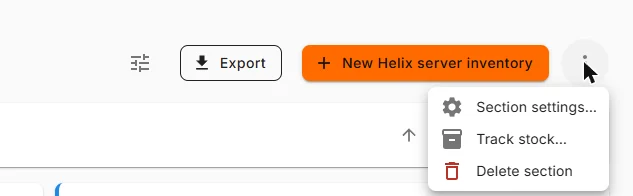
If the section has no number column, On hand offers Add an On hand column, and every record starts at 0. Since a section's columns can't be redesigned, this is the only way to add one after converting.
Turning it off
Track stock… on a tracked section offers Turn off. Nexus asks once more (Stop tracking stock for this list? Counts are written back into the On hand column and the history is kept.) and Stop tracking does it. The cells can then be edited again. Turn it on again later and Nexus records an opening balance for any difference.
Deleting and bringing back
Delete list (in the ⋮, or on the tile) asks first and says how many rows go with it. The list moves to Recently deleted at the bottom of the Smart Lists page, where it stays for 30 days.
Each entry there says who deleted it, when, how many rows it held and how many days are left. Restore brings it back with its rows. Delete for good erases it now, after asking. That one really can't be undone.
Keyboard
- Tab reaches the grid once. Inside it, the arrow keys move between cells.
- Enter or F2 edits a cell. Enter saves, Tab saves and moves on, Esc cancels.
- In a Long text cell, Enter starts a new line and Ctrl+Enter saves.
- In the new-row line, Enter adds the row.
Common questions
Who can see my list? Only you, until you share it.
Why can't I add rows to a list someone shared with me? You have View access. Adding rows needs Comment or higher. Ask whoever shared it.
Why won't a column sort? It's a Link to a record column. Those can't be sorted. On lists over 2,000 rows, turn on Indexed for the columns you sort by.
I deleted a column by accident. Open Columns, find it under Removed columns, and click Put back.
When should I convert a list? When rows need their own pages, files or record-by-record sharing, when you want to track stock, or when you're heading for 10,000 rows. Not before. A list is quicker to work in.
I converted a list and need another column. A section's columns are fixed. Add every column you'll need while it's still a list. The one exception is On hand, which Track stock… can add.
Can I build an inventory from scratch? Yes, that's what a list is for. Design the columns you want (count, levels, cost, plus anything else, like SKU or shelf), add the rows, then convert with Track stock after converting ticked.