
Goals is where you write down what you're working toward, then watch the work get you there. A goal can be your own (pass the certification, run the 10k) or belong to a project, program, portfolio or client account (cut the cutover downtime, keep the client).
There are two kinds:
- A goal fills its progress bar from the tasks you link to it. Finish a task, the bar moves.
- An objective is a goal with key results: measurable outcomes like downtime under 2 hours or 95% of users migrated. You check in on each one, and the objective's progress comes from them. This is the OKR way of doing it, and it's part of the Pro plan.
Open it from Goals in the left menu.
Three questions Goals answers
The lay of the land

- New objective and New goal.
- The four numbers. Two of them are filters. More on those below.
- Goals and Objectives. Which kind you're looking at.
- The level: All, Personal, Project, Program, Portfolio or Client account.
- Views, search, Status and Owner.
- Your goals, one card each.
The four numbers
| Card | What it counts |
|---|---|
| Active goals | Your active goals and objectives together |
| Achieved this quarter | Goals marked Achieved since this calendar quarter began, in your own time zone |
| Objectives at risk | Active objectives whose key results' latest check-ins average below 5 out of 10 for confidence |
| Check-ins due | Key results waiting on a check-in |
Objectives at risk and Check-ins due are buttons. Click one to show only those objectives, and click it again (or Show all objectives) to go back. Under Check-ins due, each card lists the key results to check in to, so each one is a click away.
Finding goals
| Control | What it does |
|---|---|
| Goals / Objectives | Shows plain goals or objectives |
| All and the levels | Narrows to one level. Levels your plan doesn't include aren't offered |
| Views | Saved sets of filters, the same as on Tasks. The bookmark beside it saves the current one |
| Search goals... | Matches the name |
| Status | Active, Achieved or Cancelled |
| Owner | Whose goals. You're listed as Me |
The count on the right says how many match. When nothing does, the page says so and offers Clear filters.
Reading a card
- The name. Click anywhere on the card to open it. A trophy beside the name means it's an objective.
- The star adds it to your favorites, for you alone.
- Progress. A bar and a percentage, or No tasks yet / No key results yet when there's nothing to measure. An empty goal reads as empty, not as 0% and failing.
- What it belongs to: Personal, or the project, program, portfolio or client account, like Helix Hypercare and Support. The owner's initials are on the right.
- Status, the target date, and how many tasks are linked. A goal past its target date says Overdue in red, with the date.
Making a goal
Click New goal (on this page, or on Home).
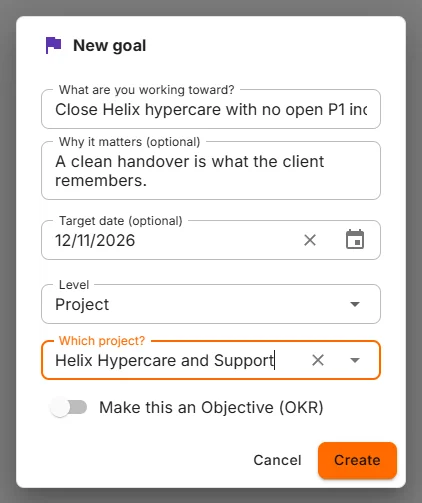
- What are you working toward? The name. The only thing you have to fill in.
- Why it matters (optional). Future you will want to know.
- Target date (optional).
- Level. Personal, or the project, program, portfolio or client account it belongs to. Pick a level and a box appears to choose which one.
- Make this an Objective (OKR). Turns it into an objective with key results. New objective opens the same form with this already on.
Click Create and the goal opens.
| Level | Comes with |
|---|---|
| Personal | Every plan |
| Project | Every plan |
| Program | Pro |
| Portfolio | Enterprise |
| Client account | Enterprise |
| Objectives (any level) | Pro |
A level or switch your plan doesn't include is shown greyed out, with the plan that adds it and See plans.
A program's or portfolio's own page has a Goals card with a +, and a client account's plan has Strategic Goals with New goal. Goals made there are already set to that level and that record.
A goal's page
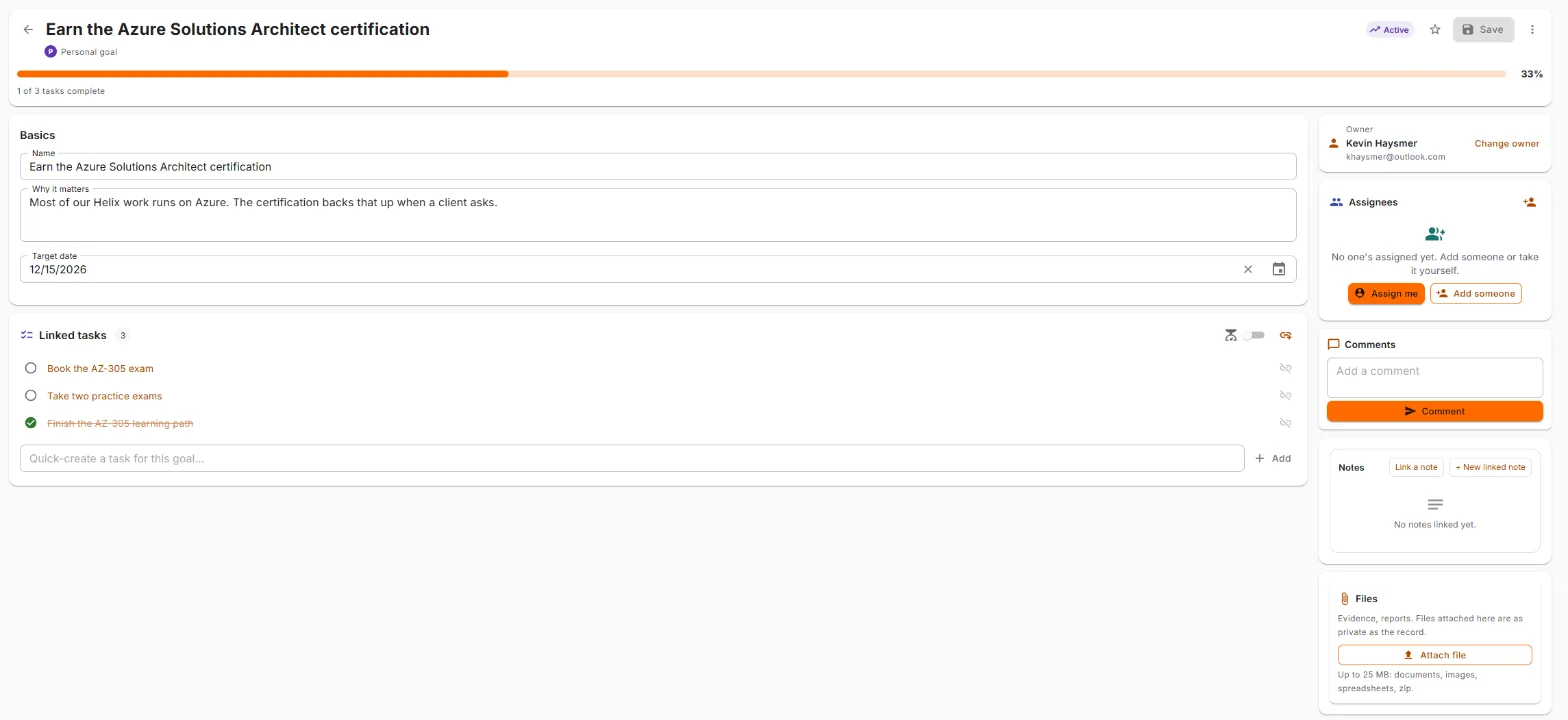
At the top: the back arrow, the name, the status, the star, Save and the ⋮ menu. Under the name: the level, what it belongs to (a link), and Overdue by 3 days when it is. Under that: the progress bar.
Basics holds the Name, Why it matters and Target date. Change them and click Save. Discard changes puts them back. Leave with unsaved changes and Nexus asks first.
When AI is on for your workspace, Basics also has AI access: whether AI features may read this goal. It doesn't change who can see the goal.
If someone else saved the goal while you were editing, Save stops and says so, with Reload. Nothing gets overwritten.
Status
Click the status to change it: Active, Achieved or Cancelled.
Mark one Achieved and Nexus says "Achieved: that's a win worth marking." It is. Take the moment.
Linked tasks and progress
A goal's progress comes from the tasks linked to it.
- Link a task (the link icon) searches tasks you can see. Quick-create makes a new task already linked.
- The bar shows the share of linked tasks completed: 1 of 3 tasks complete.
- Cancelled tasks don't count, for or against.
- The switch at the top of the panel weights progress by estimated hours, so a 20-hour task counts for more than a 1-hour one. A task with no estimate counts as one hour.
- Tick a task's circle to complete it, or click its name to open it. The broken-link icon unlinks it.
A task belongs to one goal at a time. If a task you pick is already linked somewhere else, it says Move, and linking it here moves it.
You can also link from the task's side: the task's Goal card has Link a goal.
The right-hand side
- Owner. Who holds the goal. Change owner hands it to another member.
- Assignees. People working on it with you.
- Comments, Notes and Files, the same as on a task.
Objectives and key results
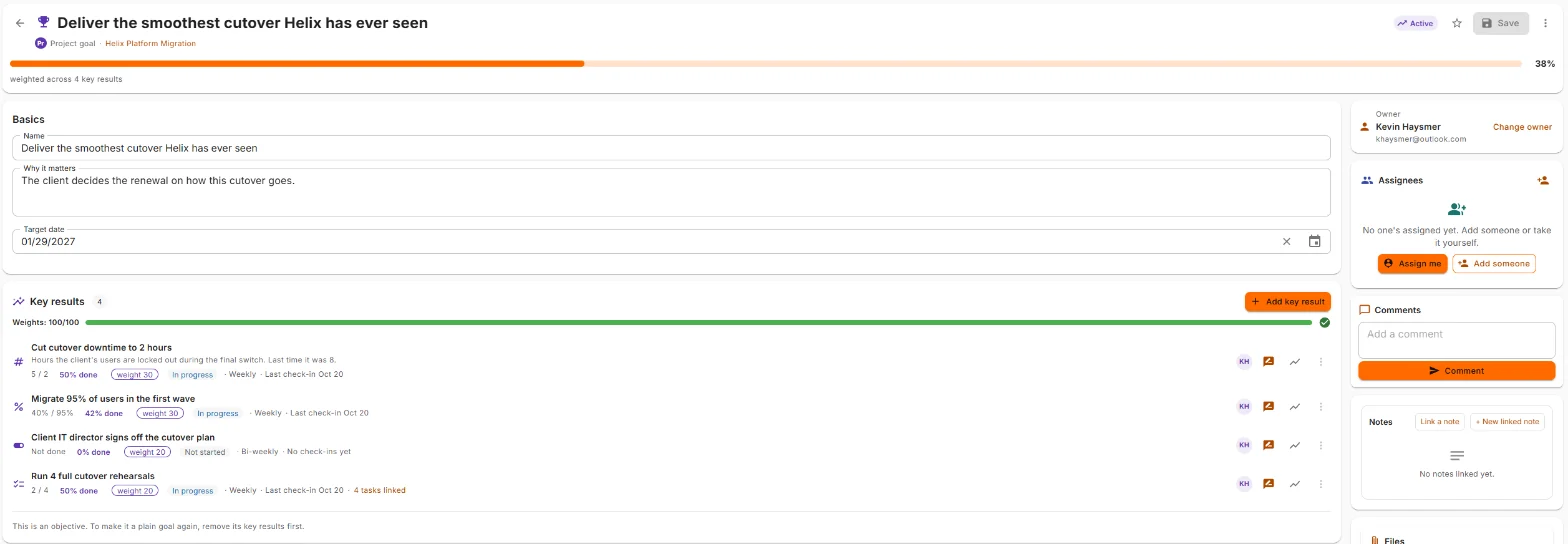
An objective is the outcome. Key results are the proof. Deliver the smoothest cutover Helix has ever seen is the objective. Cut cutover downtime to 2 hours is how you'll know.
Turning a goal into an objective
On a goal's page, open ⋮ and choose Convert to objective (OKR). While an objective has no key results, Convert back to a plain goal is at the bottom of the panel. Once it has key results, remove them first.
On an objective, linked tasks are context. Progress comes from the key results.
Adding a key result
Click Add key result.
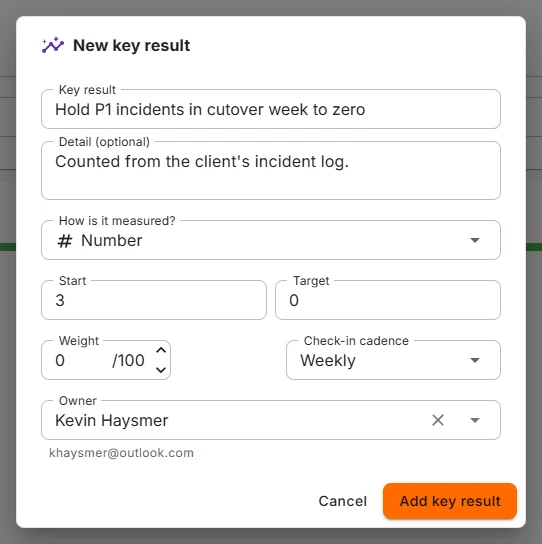
- Key result. What you'll measure. Detail (optional) for the rest.
- How is it measured?
| Type | Progress |
|---|---|
| Number | From the Start value to the Target. It works downhill too: from 8 hours of downtime to 2 |
| Percentage | The same, in percent |
| Yes / no | Nothing until it's marked done, then all of it |
| Task count | Completed tasks linked to this key result, toward a Target (tasks) |
- Weight. Its share of the objective, out of 100. It starts at whatever is left of the 100.
- Check-in cadence. Weekly, Bi-weekly or Monthly.
- Owner. Who checks in on it. It starts as you.
Weights
Every objective has 100 points of weight to share among its active key results. The bar above them reads Weights: 80/100 and turns green at 100.
- Short of 100 is allowed, and said plainly: this objective can reach at most 80%. It won't stretch the others to make up the difference.
- Over 100 is refused.
- Redistribute evenly shares the 100 equally, in one click.
There's no overdraft on the weight budget. We checked.
Reading a key result
Each row shows the type icon, the name, then:
- Where it is: 5 / 2 or 40% / 95%, and how far it has moved, like 50% done.
- Its weight, its status (Not started, In progress, Achieved or Retired), its cadence and when it was last checked in on.
- due in orange when a check-in is waiting.
- For a task count: how many tasks are linked. Link tasks opens them, with their own Link a task and Quick-create.
- On the right: the owner, Check in, History and ⋮.
Checking in
Click Check in on a key result. The dialog opens with the last check-in at the top, so you can see where you left off.
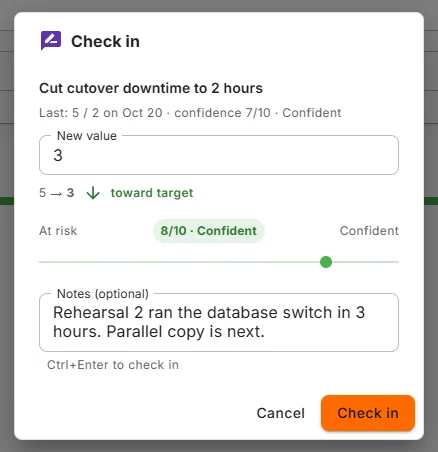
- New value. The current number. Nexus shows the move (8 → 5) and whether it's toward target or away from target. For yes/no, it's a switch. For a task count, there's nothing to type: the count of completed linked tasks is recorded for you.
- Confidence, from 0 to 10: At risk (0 to 3), Uncertain (4 to 6) or Confident (7 to 10). How sure are you it'll get there?
- Notes (optional). What moved it, or what's in the way.
Click Check in, or press Ctrl+Enter in the notes.
A key result's value only changes through check-ins. Edit changes the name, detail, targets, weight, cadence and owner, never the current value. A wrong check-in is fixed with a new one, or by deleting it (below).
History
History (the chart icon) shows every check-in, newest first: the date, the value, the change from the one before, the confidence, who checked in, and the note. With more than one check-in, a chart shows the trend. Lower is better is noted when the target is below the start.
The undo arrow on the newest check-in deletes it, and the key result goes back to the value before. Only the newest one can go, so the history stays in order.
Retire, reactivate, delete
The ⋮ on a key result:
- Edit.
- Retire. It stops counting toward the objective and its weight leaves the budget. Its check-ins are kept. Reactivate brings it back if its weight still fits.
- Delete. Removes it for good. Only offered while it has no check-ins. After that, retire it instead.
Check-in reminders
When a key result's check-in is due, its owner gets a notification: Time to check in on Cut cutover downtime to 2 hours, with the objective and when it was last checked in on. Click it and the check-in opens.
- Weekly is due 7 days after the last check-in, bi-weekly 14 days, monthly one calendar month.
- One reminder per cadence, however long it's been ignored. Nexus nags, but politely.
- Reminders also go by email as a daily digest. Change that in User settings → Notification preferences.
- An owner with no Nexus account (an outside contact) gets no reminders.
Goals elsewhere in Nexus
- Tasks. A task's Goal card links it to a goal. On an objective's Linked tasks, each task lists the key results it counts toward under Counts toward. One task can count toward several.
- Home. The Goals & focus widget lists objectives at risk. The Personal Goals and Goal Progress quick views and the OKR Alignment widget can be added from Add widget.
- Programs and portfolios show their goals on their dashboards. Client accounts show them on the account plan under Strategic Goals.
Who can see a goal
A goal is seen by its owner, its assignees, anyone it's shared with or holds a RACI role on it, and anyone standing in for the owner. A goal that belongs to a project isn't opened up to everyone on that project, so add the people who should see it.
Change owner hands a goal to another member. Unless it's shared with you, you keep only what your other rights on it give you.
Deleting and bringing back
⋮ → Delete goal (or Delete objective) asks first. It says what goes with it, like with its 4 key results and 3 check-ins, and how long the recycle bin keeps it. The linked tasks stay as they are and are linked again if it comes back.
The message afterwards has Undo for ten seconds. After that, restore it from the recycle bin.
Common questions
Why does my goal say "No tasks yet" instead of 0%? Nothing is linked, so there's nothing to measure. Link a task and the bar appears.
Why can't my objective reach 100%? Its weights add up to less than 100. Raise one, or use Redistribute evenly.
Why can't I change a key result's current value? Values move through check-ins, so the history stays true. Check in with the right number, or delete the latest check-in.
Why can't I delete a key result? It has check-ins. Retire it instead.
I can't turn on Make this an Objective. Objectives come with the Pro plan. On other plans the switch is greyed out and says so.
Why is my objective at risk when two key results are fine? At risk averages the latest confidence of every key result that has a check-in. One low score can pull the average under 5.
Can someone else check in on my key result? Its owner can, and so can anyone who can edit the objective.
Where did my reminder go? Reminders go to the key result's owner, once per cadence. If the owner is an outside contact, nobody is reminded.