
Home is the page you land on after you sign in. It answers one question: what needs me today? Everything on it is filtered to your work, and the layout is yours alone. Rearrange it however you like. Nobody gets a memo.
You can get back here from anywhere by clicking Home at the top of the left menu.
Your first five minutes
The lay of the land
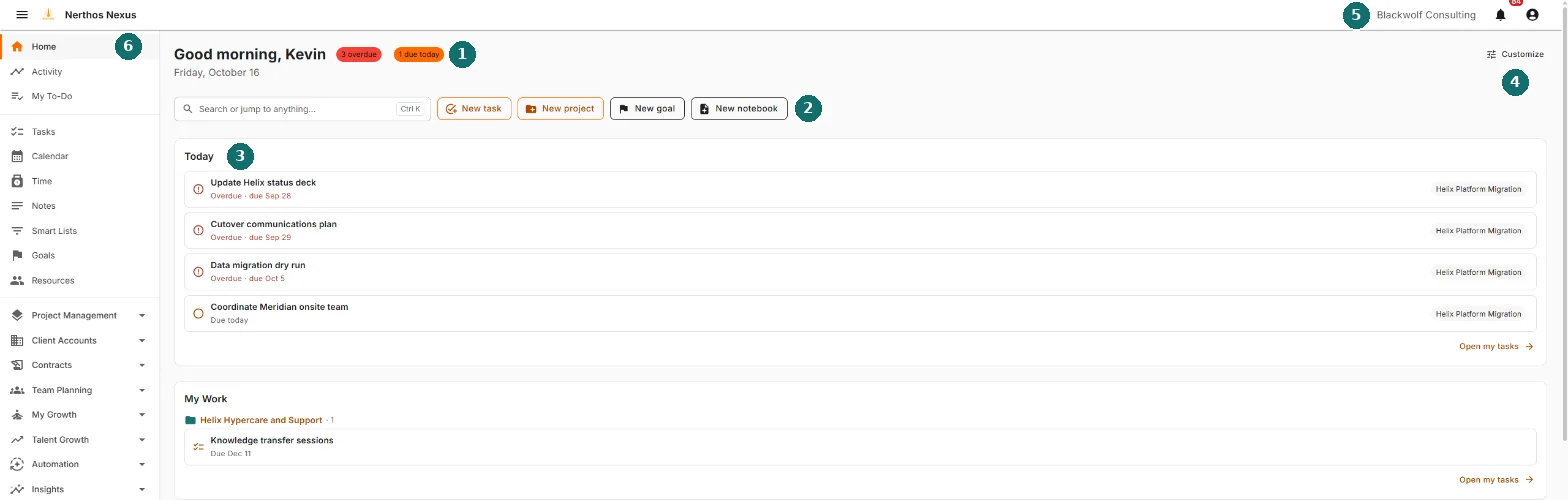
-
Your greeting and today's counts. A quick read on how the day is shaping up.
-
Search and the create buttons. Find anything or start something new.
-
Your widgets. The panels that make up most of the page. You choose which ones appear and where.
-
Customize. Where you rearrange the widgets.
-
The top bar. Your workspace name, the notification bell and your account menu. It follows you to every page.
-
The left menu. Every section of Nexus. It also follows you everywhere.
Your greeting and today's counts
Nexus greets you by first name, with the right time of day and today's date. It's a small thing. We're told people like small things.
When work needs you, counts appear beside the greeting:
-
Red, "3 overdue": your tasks past their due date.
-
Orange, "2 due today": your tasks due today.
Click either one to open your task list, filtered to just those tasks.
No counts at all? Nothing is overdue and nothing is due today. Don't question it. Walk away slowly.
Search: find anything, fast
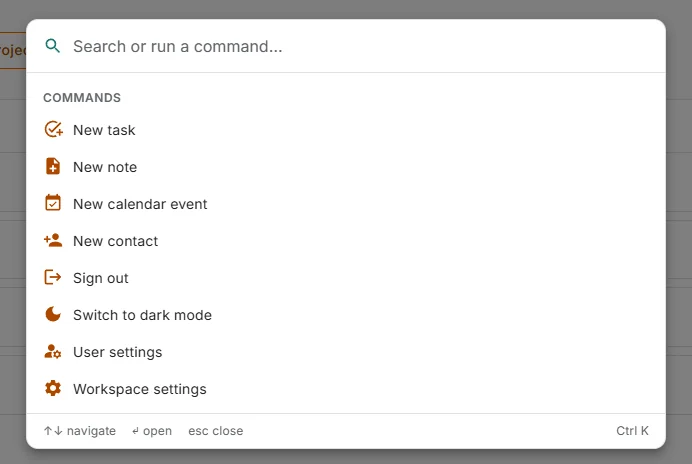
Click Search or jump to anything under the greeting, or press Ctrl + K on any page. Both open the same search window.
Before you type, it offers a short list of Commands: New task, New note, New calendar event, New contact, Sign out, switching between light and dark mode, User settings and Workspace settings.
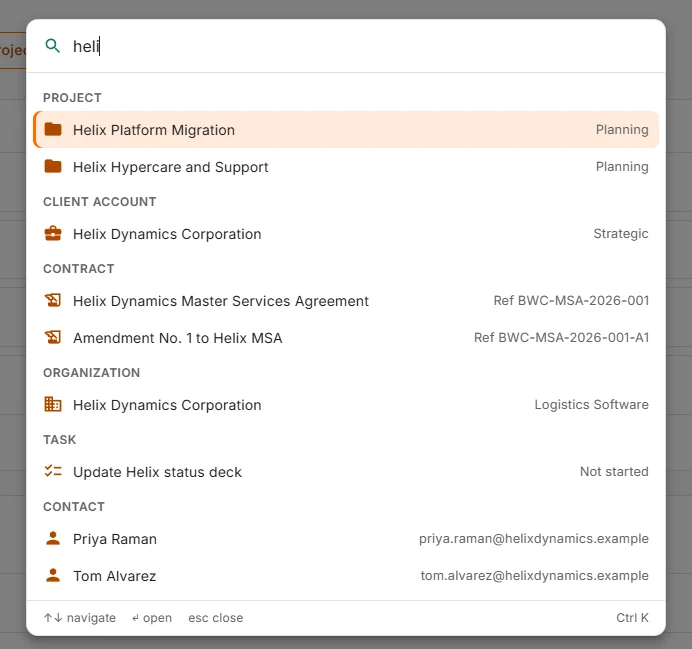
Start typing and results appear grouped by type: projects, client accounts, contracts, organizations, tasks, contacts and more, with a status or detail on the right. If what you typed matches a part of the app, you'll see it under Pages too.
-
Up and Down arrows move through the results.
-
Enter opens the highlighted one. The top result is already highlighted, so typing a name and pressing Enter takes you straight there.
-
Esc closes the window.
Mouse optional.
Make something new
Next to search are four buttons for the things people create most.
| Button | What happens |
|---|---|
| New task | Opens the full task page. It's kept as a draft while you work and Create adds it to your tasks. Discard (or Close, once it's created) brings you back to Home. |
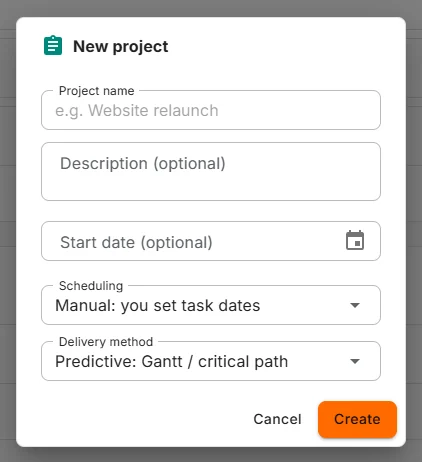
| New project | Opens a short form right over Home. |
| New goal | A short form for a goal: what it is, why it matters, a target date and who it's for. |
| New notebook | A short form to start a notebook for your notes. |
The project form shows how quick these are. Give it a name. Everything else is optional or already set to a sensible default.
Your widgets
Widgets are the panels that fill most of Home. Each one answers one question, like "what's due today?" or "what was I just doing?". Most lines in a widget are links, so click a task, project or note to open it.
A new Home starts with these six:
Today
Everything that needs you today. Overdue tasks come first, in red, then tasks due today, then today's calendar events and time blocks. Each task shows its project on the right and Open my tasks at the bottom opens your full task list.
When the day is clear, Today says "Nothing due today. Nice." We stand by that.
My Work
Tasks you've started that aren't due yet, grouped by project. A task shows up here when its status is In progress and it's either due later or has no due date at all. Once it's due today or overdue, it moves to Today, so the two never repeat each other.
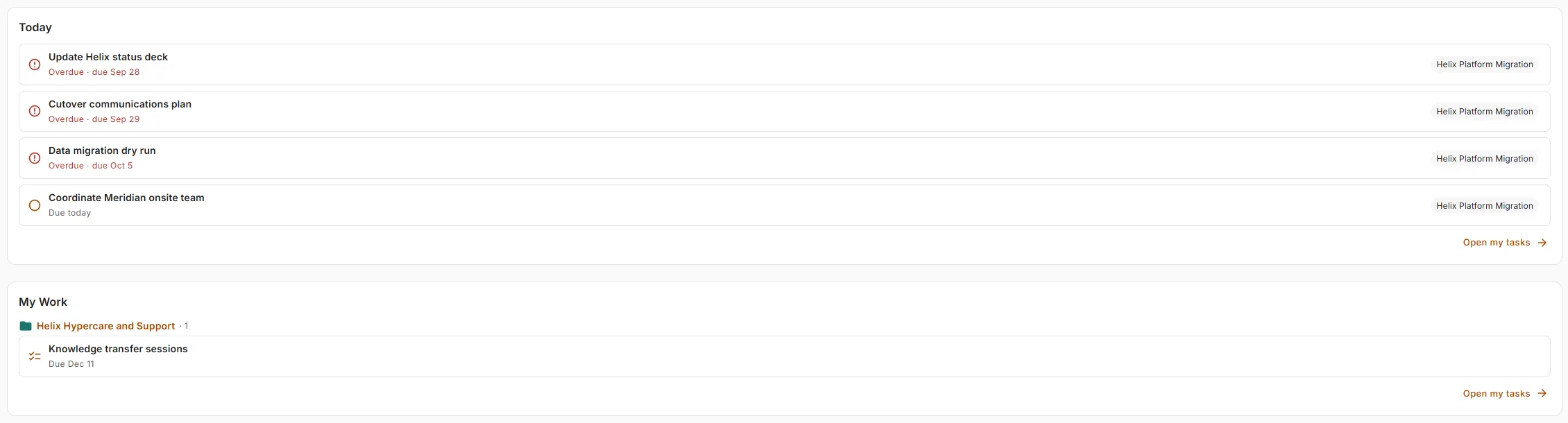
A task that's due next week but Not started won't appear on Home yet. You'll find it in your task list under Later.
Notifications
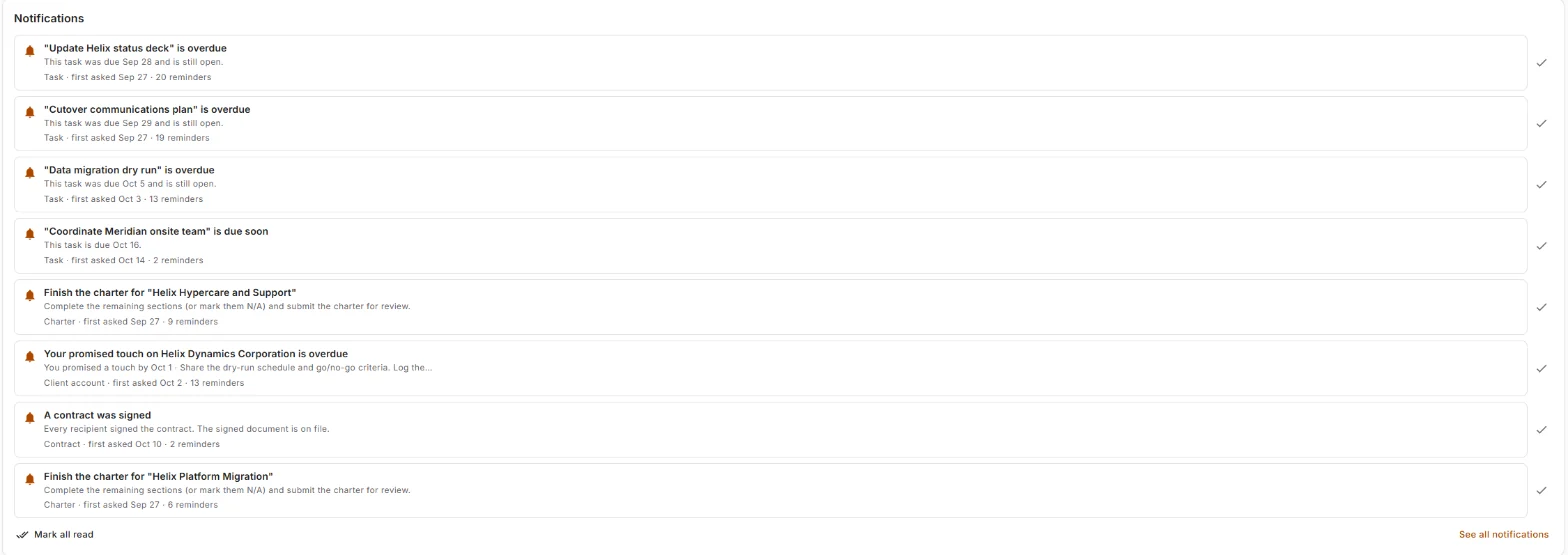
Your latest notifications.
-
Click one to open the thing it's about.
-
Click the tick on the right to mark it read.
-
Mark all read clears the lot. See all notifications opens your full history.
Nexus doesn't make you scroll past the same reminder twenty times. A reminder that keeps firing shows up once, with when it started and how many times it has fired: "first asked Sep 27 · 20 reminders". Take the hint.
Goals & focus
Objectives that were flagged at risk at their latest check-in. It only ever shows problems, so an empty Goals & focus is good news. This one appears only if your plan includes Goals.
Recent
The last eight things you changed, anywhere in Nexus, newest first. For when you walked away mid-thought and can't remember what you were doing.
Favorites
Everything you've starred, as quick links. To add something, open it and click its star.

Make Home Yours
Click Customize at the top right. The Customize Home panel opens above your widgets, with one row per row of Home. Every change saves the moment you make it, so there's no Save button to forget. Click Done when you're finished.
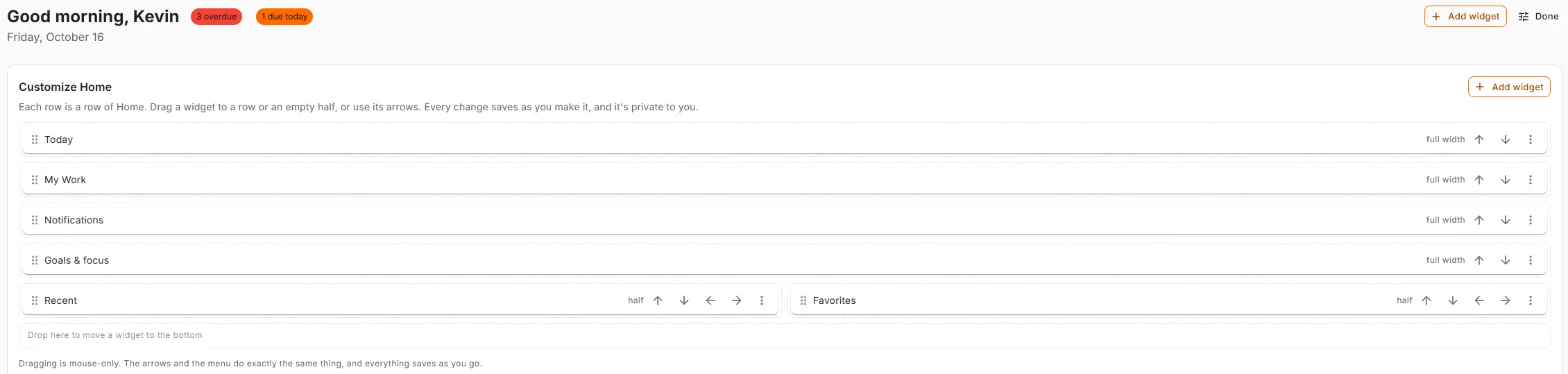
Move a widget. Drag it by its handle (the six dots) to another row, or into an empty half. Prefer the keyboard? The up and down arrows move a widget up or down the page, and the left and right arrows move a half-width widget from one side to the other. Dragging only works with a mouse. The arrows do exactly the same thing.
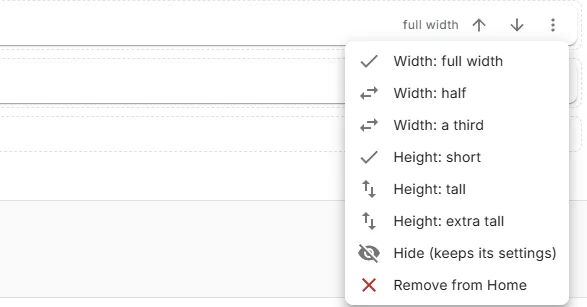
Resize, hide or remove. Click the three dots at the end of a row:
-
Width: full width, half, or a third. Some widgets need more room, so not every width is offered for every widget.
-
Height: short, tall or extra tall.
-
Hide (keeps its settings): moves the widget into a Hidden list at the bottom of the panel. Click Show to bring it back exactly as it was.
-
Remove from Home: asks you to confirm, then takes it off Home. If you add it again later, it comes back with its settings reset, and there's no undo.
While you're customizing, each widget on the page also gets its own three-dot menu. That's where you'll find Configure for widgets that have settings, like a saved view.
Two of the same widget? They get numbered, like Active goals (1) and Active goals (2), so you can tell them apart.
Add more widgets
While you're customizing, click Add widget. Anything already on your Home is marked on Home, and the + adds it.
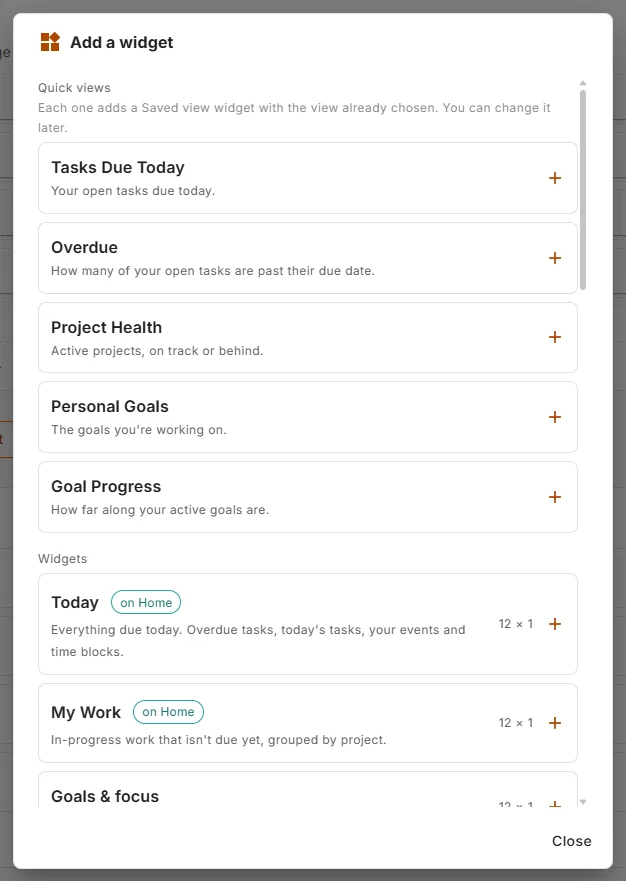
Quick views are ready-made widgets with a common question already set up. Add one and you're done.
| Quick view | Shows |
|---|---|
| Tasks Due Today | Your open tasks due today |
| Overdue | How many of your open tasks are past due |
| Project Health | Active projects, on track or behind |
| Personal Goals | The goals you're working on |
| Goal Progress | How far along your active goals are |
A quick view can show a list, a single number, health labels or progress bars. If a list has more than fits, it says so ("Showing 5 of 23") and gives you a See all link. To change what one shows, choose Configure from its menu while customizing. (A saved view is a set of filters you saved on a list page such as Tasks or Projects.)
Widgets are the fuller panels. Beyond the six Home starts with, you can add:
| Widget | Shows |
|---|---|
| Saved view | Any saved view, as a list, a number, health labels or progress bars |
| OKR Alignment | Active objectives with their key results |
| Risk Summary | Risk levels and the biggest risks for a program or project |
| Drift Alerts | Projects that have slipped past a limit you're watching |
| Team Workload | Who has too much on their plate this week |
| Recent Activity | What's been happening across your workspace |
| Calendar Preview | What's on your calendar in the next 24 hours |
| Shared With Me | Items other people have shared with you |
| Notes | Pages edited most recently, by you or anyone |
| Suggestions | Suggestions for you, based on how you work, to accept, reject or put off |
| Low stock | Stock items at their reorder point or below, most urgent first |
| Recent movements | The newest stock changes: received, used, returned and counted |
| Usage over time | How much stock your work used each month, for the last six months |
| Stock value | What your stock is worth today, per currency |
| Contract Cycle Time | Typical days from a contract being created to going active |
| Signature Turnaround | Typical days from sending a contract for signature to getting it back signed |
| Clause Risk | How risky the clauses in your contracts are, by risk level |
| Contract Value | Total and typical contract value, per currency |
| Renewal Pipeline | Contracts coming up for renewal and how healthy they look |
You can also pin a report to Home. Open it in Reports and click Pin to Home. It keeps the filters it had when you pinned it.
The top bar
The bar across the top is on every page. On the right you'll see your workspace name, the bell and the person icon.
The bell
The red number on the bell counts notifications that arrived since you last opened it. Opening the bell resets that number. Anything unread stays highlighted until you read it or mark it read.
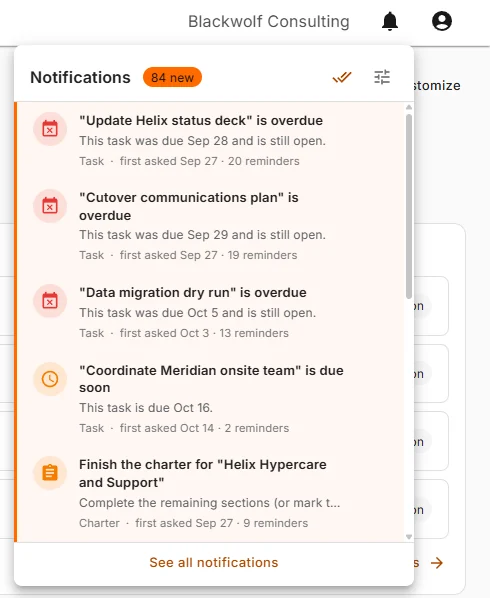
The two icons at the top of the panel mark everything read and open your notification preferences, where you choose what you hear about and how.
The bell, the Notifications widget and the full Notifications page all show the same notifications, grouped the same way. Mark something read in one place and it's read everywhere. On the full page you can also switch to Unread only and open a grouped reminder to see each time it fired.
Finished or cancelled a task? Its "due soon" and "overdue" reminders clean themselves up. Nobody likes being reminded about something they already did.
Your account menu
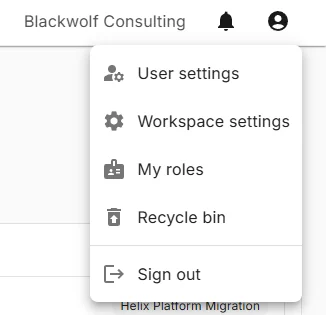
Click the person icon:
-
User settings: your own preferences, like light or dark mode.
-
Workspace settings: settings for the whole workspace.
-
My roles: the roles you hold, and where you'll find out when you're given a new one.
-
Recycle bin: where deleted items wait in case you change your mind.
-
Sign out: see you tomorrow.
Two more items appear only when they apply. If you belong to more than one workspace, Switch workspace lists them. If someone has invited you to their workspace, the invitation shows at the top of the menu with a Join button, and the person icon gets a red badge so you don't miss it.
The left menu
The left menu lists every section of Nexus.
-
The top group (Home, Activity, My To-Do) is about you.
-
The next group (Tasks, Calendar, Time, Notes, Smart Lists, Goals, Resources) holds your everyday tools.
-
The groups with arrows (Project Management, Client Accounts, Contracts and the rest) open to show the pages inside them.
The menu button at the far left of the top bar hides the menu or shows it again, if you'd like more room.
What you see depends on your plan and your role, so a teammate's menu may not match yours.
If you're a guest
If someone has invited you into their workspace as a guest, your Home is simpler. It shows what's been shared with you, and it has no Customize, search or create buttons. That's on purpose. You're visiting, and the house rules are theirs.
Keyboard shortcuts
| Keys | What it does |
|---|---|
| Ctrl + K | Open search from any page |
| Alt + N | Write a quick note from any page |
| Up / Down arrows | Move through search results |
| Enter | Open the highlighted result, or run the command |
| Esc | Close search |
Common questions
Why is a widget empty? Every empty widget tells you what would appear there. Favorites is empty until you star something. My Work is empty when none of your in-progress work is still ahead of its due date (if it's due today or overdue, it's in Today).
Why doesn't a number on my Home match my teammate's? Home counts only your own work and what you have access to. You can both look at the same widget, see different numbers, and both be right.
Will my colleagues see my layout? No. Your Home is yours.
I removed a widget by mistake. Add it again from Add widget. It comes back with its settings reset. Next time, try Hide.
A widget says it isn't available on my plan. Your workspace's plan doesn't include the part of Nexus that widget uses. Remove it or leave it where it is in case the plan changes.